
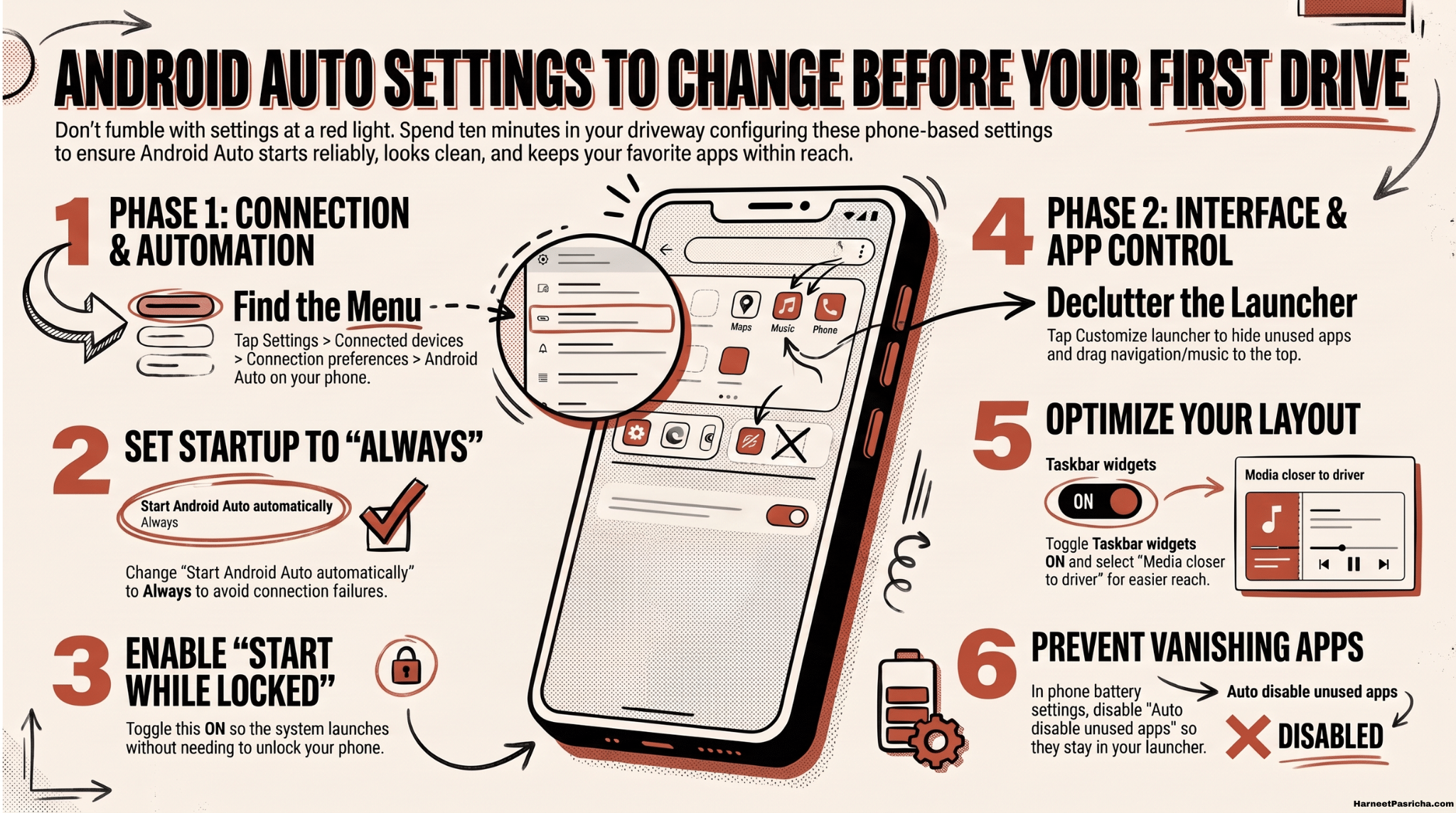
The best time to set up Android Auto is in your driveway, not at a red light. These Android Auto settings all live on your phone, so you can take care of them in about ten minutes before you turn the key.
How to Find Android Auto Settings on Your Phone
- Open the Settings app on your phone.
- Go to Connected devices > Connection preferences > Android Auto.
- If your menus look different, type “Android Auto” into the Settings search bar.
- After you make changes, disconnect and reconnect so Android Auto restarts and picks them up.
Make It Start Every Time
- Start Android Auto automatically: Under Startup, tap this and choose Always instead of letting your car decide. That means fewer “why didn’t it connect?” moments.
- Start Android Auto while locked: Turn this on so you don’t have to unlock your phone each time you get in. Your phone can stay on the mount or in your pocket.
Decide What Happens With Your Music
- Autoplay on connect: On newer versions, look for Start music automatically under Startup. Leave it on if you like audio picking up right away, or turn it off if you’d rather start the drive in quiet.
- Check your music apps too: Some streaming and podcast apps have their own autoplay setting. If audio keeps starting on its own, look there next.
Clean Up the App Launcher
Android Auto shows every compatible app on your phone by default, and that gets crowded fast.
- Hide what you won’t use: Tap Customize launcher and uncheck any app you’d never open while driving.
- Put favorites first: Switch Launcher sorting from A to Z to Custom order, then drag navigation and music to the top.
- Add a one-tap voice shortcut: Tap Add a shortcut to the launcher to turn a spoken command like “find gas stations near me” into a single button. This pairs nicely with Gemini on Android Auto.
- Recheck now and then: New compatible apps get added to the launcher automatically when you install them.
Tweak the Screen Layout
- Taskbar widgets: Turn this toggle on to add small widgets to the taskbar, so key info stays visible while you’re in another app.
- Media closer to driver: Under Advanced > Change layout, pick Media closer to driver if you reach for playback controls more than the map. Availability depends on your car’s screen.
Keep Apps From Disappearing
- Why apps vanish: Android can put apps you rarely open to sleep. Sleeping apps drop out of the Android Auto launcher even though they’re still on your phone.
- The fix: In your phone’s battery settings, turn off Auto disable unused apps or Put unused apps to sleep. Google covers this in its Android Auto Help page on missing apps.
Tame Messages While You Drive
- Cut the pop-ups: Incoming texts can cover your directions at the worst moment. Here’s how to hide incoming messages on Android Auto for a calmer screen.
- Go further later: Once the basics are set, these 10 ways to make Android Auto better are worth a look.
Ten minutes in the driveway saves a lot of fumbling on the road. Once these are set, Android Auto mostly stays out of your way, which is exactly what you want from it.
Yes. Most Android Auto settings live on your phone under Settings > Connected devices > Connection preferences > Android Auto, so you can set everything up from your couch.
Many changes only kick in after Android Auto restarts. Disconnect your phone, reconnect it, and your new launcher order and settings should appear.
Look for the Start music automatically toggle under Startup in Android Auto settings. If audio still starts on its own, check the autoplay setting inside your music or podcast app.
Your phone may have put the app to sleep because you haven’t opened it in a while. Open the app on your phone, then turn off Auto disable unused apps or Put unused apps to sleep in your battery settings.
Yes. Open Customize launcher, switch Launcher sorting to Custom order, and drag your most-used apps to the top.
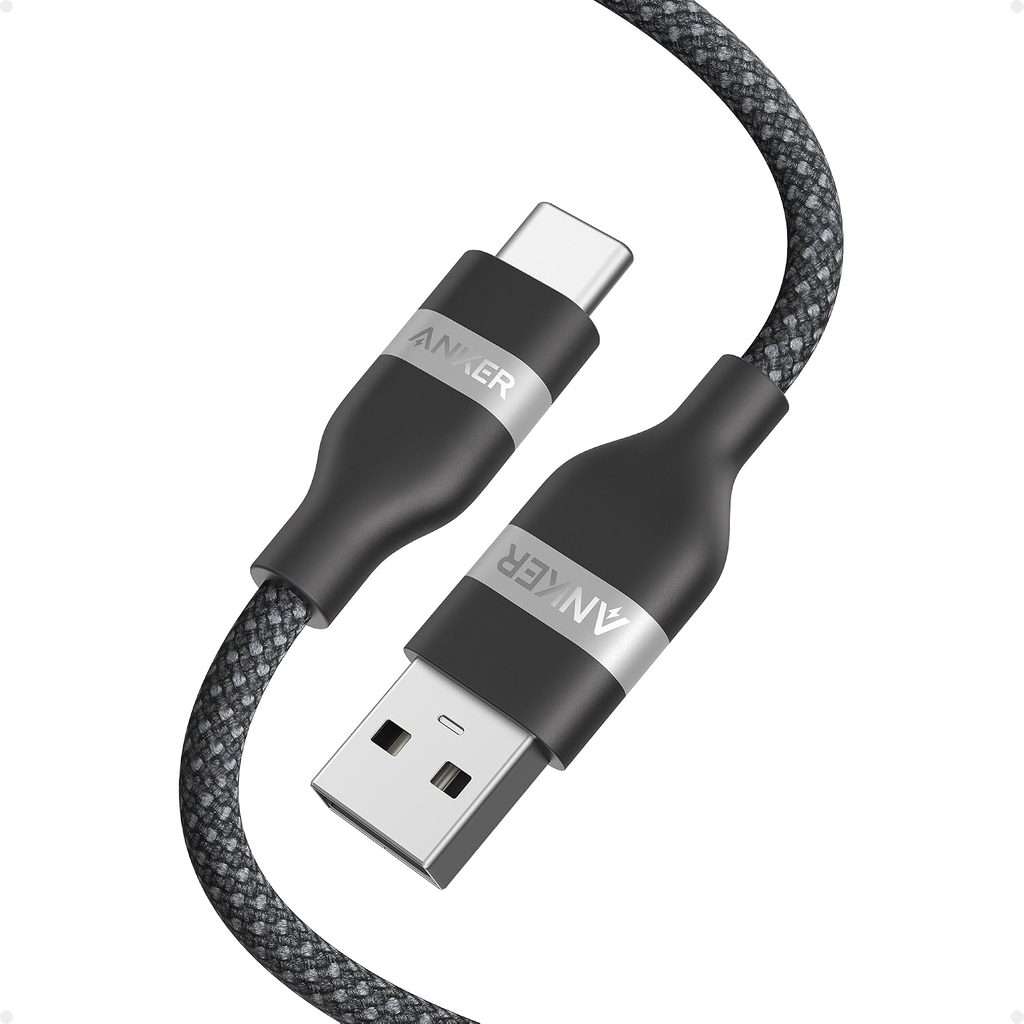
Accessories you might want
Heads up: some links here are affiliate links. If you pick something up through them, I get a small commission. It does not change the price for you at all.