
I used to have a weird two-step ritual every time someone emailed me a PDF that needed a note or a signature. Download it, open it in some other app, mark it up, then re-attach it and hope I grabbed the right file. Turns out I did not need any of that. Chrome has had a way to annotate PDFs built right into the browser since version 145, and once I found it I stopped downloading anything.
Where the annotate PDFs in Chrome tool lives
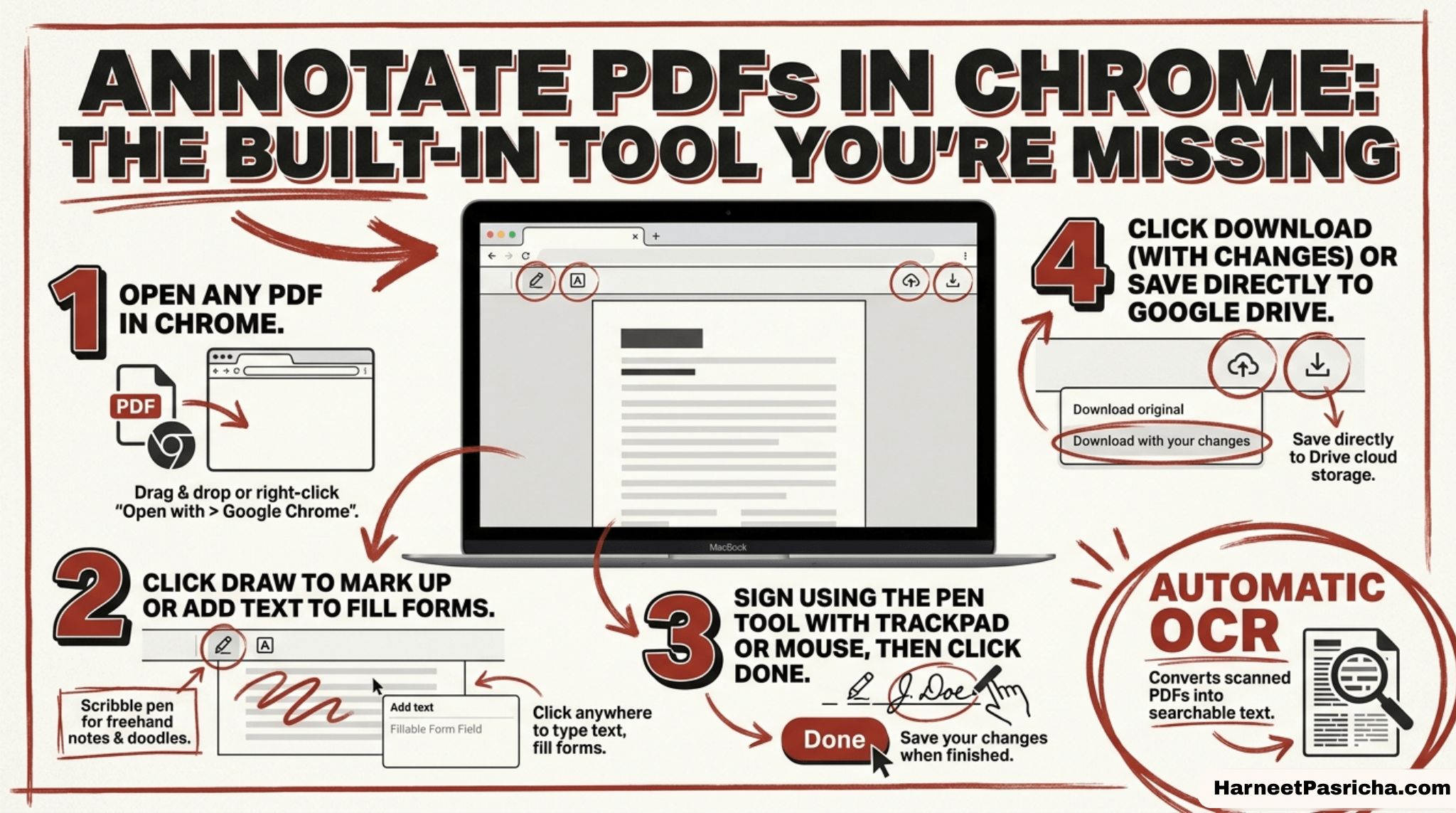
Open any PDF in Chrome, whether it is attached to an email, sitting in your Downloads folder, or linked from a website. Along the top of the viewer you will see a small toolbar. Look for the icon that looks like a scribble. That is Draw, and it is the door into everything else.
How to mark up a PDF in Chrome
- Open your PDF in Chrome. If it opened in a new tab automatically, you are already there. If not, click the three dot menu and choose **Open in new tab**.
- Click the **Draw** icon in the toolbar.
- A panel opens on the right with your tools: **Pen**, **Highlighter**, and **Eraser**.
- Pick **Highlighter** to mark up a sentence or **Pen** to circle something or jot a quick note in the margin. Both let you set a size and color first.
- Click and drag to draw or highlight. On a trackpad, tap and hold while you move your finger.
- Made a mistake? Hit **Undo**, or switch to **Eraser** and clean up just that one mark.
Adding text and a signature
- If you need to fill something out rather than just circle it, click **Add text** instead of **Draw**, pick a font and color from the sidebar, then click wherever you want the text to land.
- Signatures work through the same Draw tool. Select Pen, zoom into the signature line so you have room to work, sign with your mouse or trackpad, then click Done. It will not fool a notary, but for initialing a form or signing off on something informal it does the job.
- When you are finished, click the download icon and choose whether to save with your changes or without them. Chromebook users get a **Save** button in the same spot.
One more thing worth knowing
- The same PDF viewer can save your file straight to Google Drive without a separate upload step, which pairs nicely if you already keep everything else in Drive organized the way I laid out here. Look for the Save to Drive icon at the top right of the viewer, pick the account, and it lands in a folder called Saved from Chrome.
None of this replaces a real PDF editor if you are doing heavy contract redlines every day. But for the ninety percent of the time I just need to highlight a paragraph or scribble my initials, I have not opened a separate app since I found it. According to Google’s own documentation, the viewer also runs OCR on scanned PDFs automatically, so even a scanned document becomes searchable and highlightable the moment you open it.
Not yet. The Draw, highlight, and signature tools only work in Chrome on desktop right now. On a Chromebook you get the same tools, but Android and iOS Chrome are view-only for PDFs.
No. Chrome keeps your marks while the tab is open, but you need to click the download icon and choose “With your changes” to actually save them. If you close the tab first, they’re gone.
Yes. Annotations sit as their own visible layer on the page rather than replacing the original text, so anyone opening the file will see your highlights, notes, or signature the same way you left them.
Yes. You can annotate a PDF straight from an email attachment or a link, as long as it opens in Chrome’s built-in viewer instead of downloading automatically. Check chrome://settings/content/pdfDocuments if PDFs keep downloading instead of opening in a tab.
No. This is a hand-drawn mark for informal use, like initialing a form or signing off on something casual. It isn’t a certified e-signature, so don’t use it for contracts or anything that needs to hold up legally.
Click Undo, or switch to the Eraser tool and remove just that one mark without disturbing anything else you’ve added.