
Create My Widget is a new Pixel feature that lets Gemini build a home screen widget from a plain-English description. Here is who can use it, how to set it up, and where it still falls short.
What Create My Widget Does
- Describe it, get it. Type what you want to see, or pick a suggested template, and Gemini builds the widget in a few seconds.
- Preview before you commit. You can tweak the widget before adding it, and edit it again later.
- Your data, your call. Connect Google apps like Calendar and Gmail for personal widgets, or stick to web data and location for things like weather, news, and stocks.
- Google’s own examples. A monthly spending tracker, a game day widget in your team colors, and a getaway countdown that pulls in flight details.
Which Pixels Can Use It
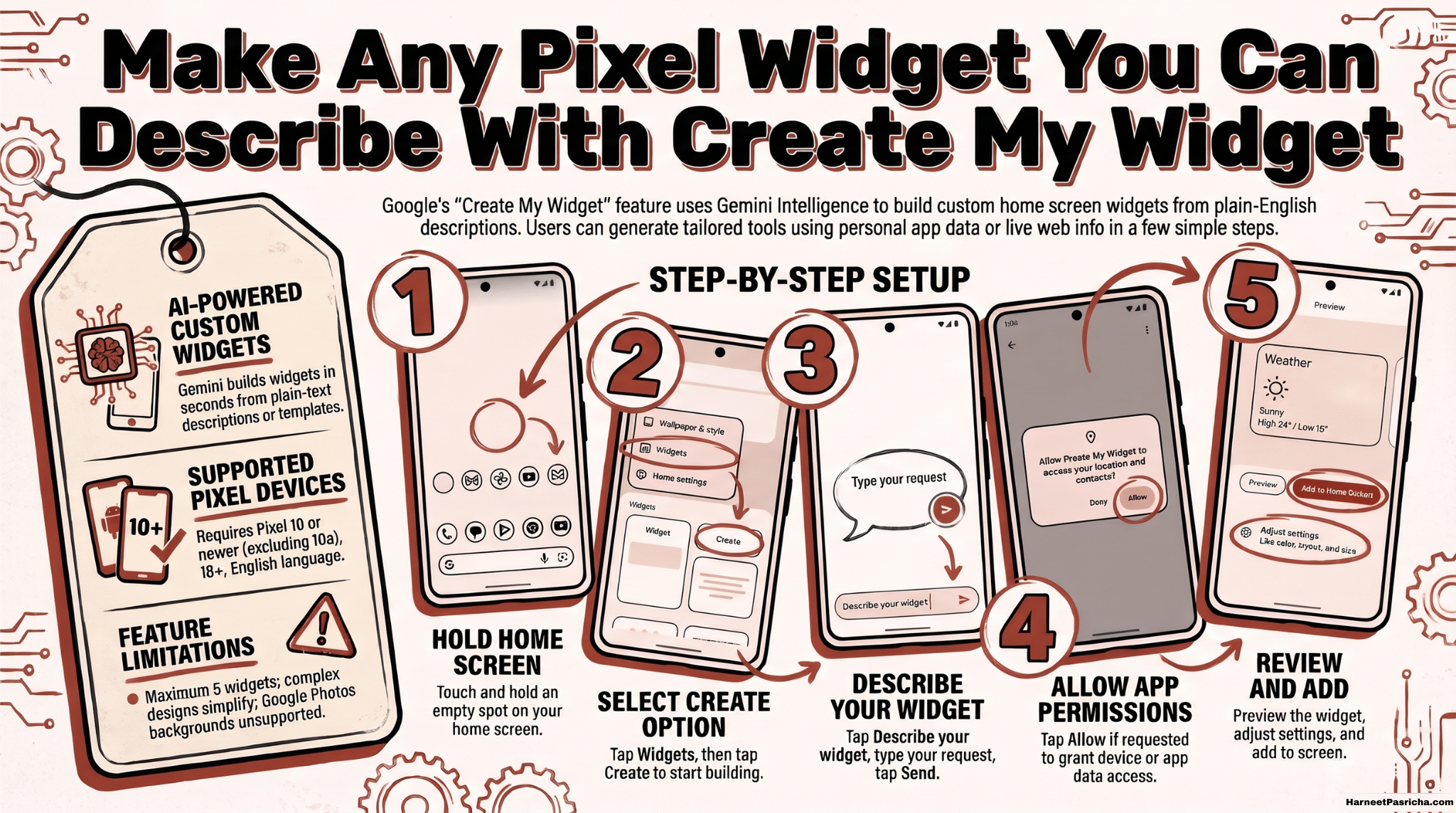
- Phones: Pixel 10 and newer, including the Pixel 10 Pro Fold and the Pixel 11 series. The Pixel 10a is left out.
- People: You need to be 18 or older and use English.
- Countries: The US, UK, Canada, Australia, and India.
- Why the short list: The feature runs on Gemini Intelligence, which only some phones support.
- New Pixel 10? While you are in settings, check my list of first things to change on a Pixel 10.
How to Set Up Create My Widget
- Touch and hold an empty spot on your home screen.
- Tap Widgets, then tap Create.
- Tap Describe your widget, type what you want, and tap Send.
- Tap Allow if the widget asks for device or app data.
- Review the preview, adjust it, and add it to your home screen.
Google lists the same steps on its Pixel Help page for custom widgets.
Can’t See the Create Button?
- Rollout is gradual. Google says November Pixel Drop features arrive in phases over several weeks, so a missing button does not mean something is broken.
- Try the beta. Join the beta on the Play Store listing for the Create My Widget app, then update it.
- Look for the app. The Create button only appears in the widget picker once the app is installed.
Where It Falls Short
- Widget cap. Android Police reports a limit of five of these widgets on your home screen at once.
- Complex designs. A fancy request can come back as something simpler than you asked for.
- Custom photos. Android Authority found that it refused a Google Photos image as a background.
- Simple wins. Short, clear prompts give the best results.
Widget Ideas Worth Trying
- Countdown: Days until a trip or event.
- Sports: Your team’s next game, with date, time, and venue.
- Deliveries: A package tracker that reads shipping emails from Gmail.
- Calendar: Upcoming birthdays and anniversaries.
Start with one simple request and refine it from there. Create My Widget gets more useful with every tweak.
Frequently Asked Questions
It is a Pixel feature that uses Gemini to build home screen widgets from a short description or a suggested template. You can preview and adjust the result before adding it.
Pixel 10 and newer phones work, including the Pixel 10 Pro Fold and the Pixel 11 series. The Pixel 10a is not supported. You also need to be 18 or older, use English, and live in the US, UK, Canada, Australia, or India.
Only if you want it to. You can connect Google apps like Calendar and Gmail for personal widgets, or use only web data and location for public info like weather and stocks.
Google is rolling the feature out over several weeks. You can join the beta on the Create My Widget Play Store listing, update the app, and the Create button should show up in the widget picker.
Not right now. Android Authority reported that Create My Widget declined a Google Photos image as a background.
Android Police reports a limit of five Create My Widget widgets on your home screen at once.