
I have a handful of prompts I type into Gemini almost every week. The same instructions, tweaked slightly each time, for the same handful of tasks. It always felt like a waste of a few minutes I did not need to spend. Gemini Skills in Chrome fixed that for me, and setting one up took less time than making coffee.
What Gemini Skills Actually Do
A Skill is a saved prompt that lives right inside Gemini in Chrome. Instead of typing out your full instructions every time, you save them once and run them with a single click on whatever page you are looking at. Gemini reads the content of your open tab and applies your saved instructions to it automatically.
You can build your own from scratch, or pick from a library of ready-made Skills Google already put together, like checking whether a job posting fits your resume or swapping ingredients in a recipe for higher protein options.
How to Set One Up
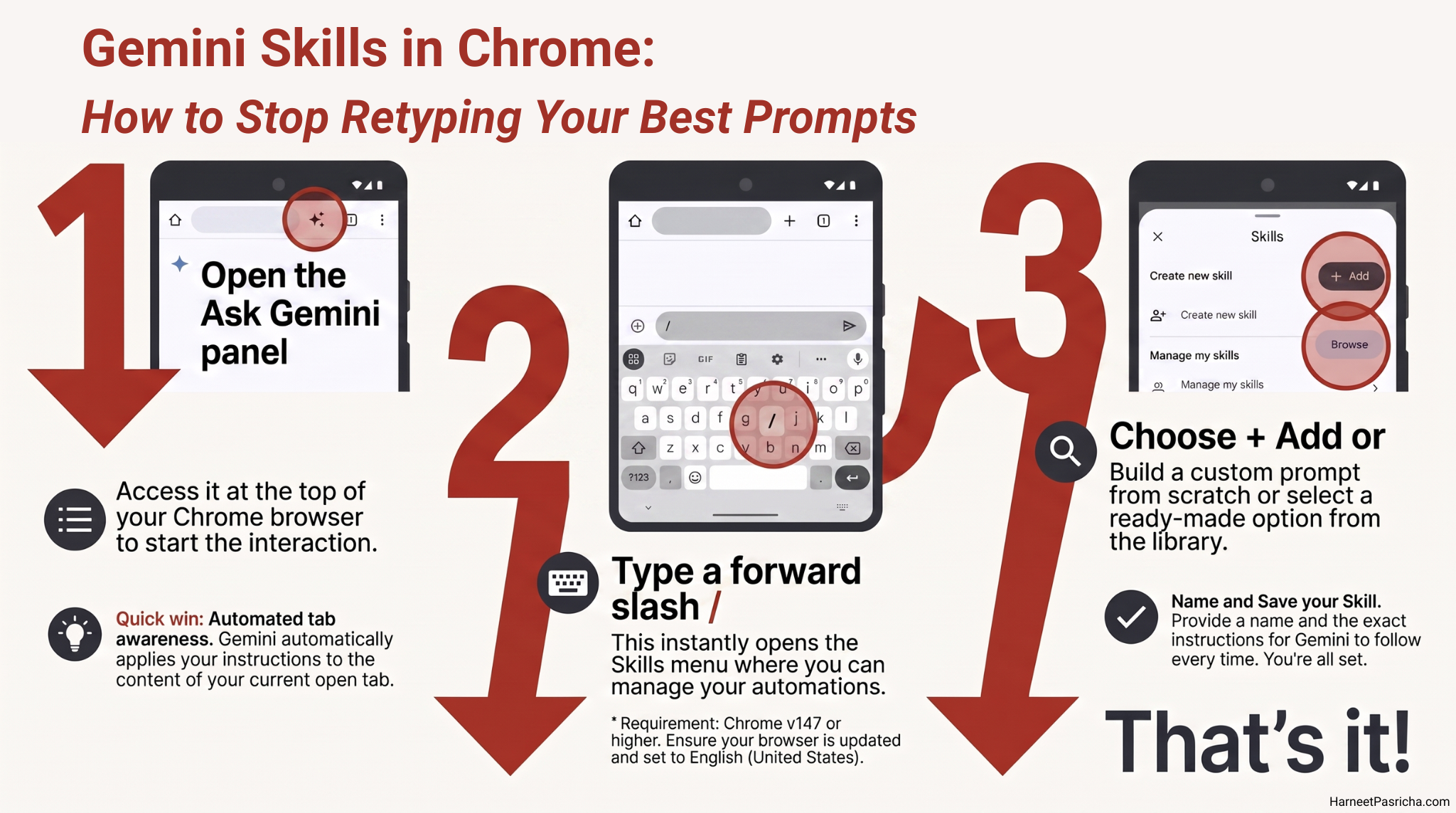
- Open Chrome and click Ask Gemini at the top of the browser.
- In the text box, type a forward slash / to open the Skills menu.
- Click Browse Skills at the bottom of that menu to see Google’s ready-made options, or click + Add to build your own.
- Give your Skill a name, an optional description, and the exact instructions you want Gemini to follow every time.
- Save it, then run it anytime by typing / and selecting it from the list.
If you ever want to reach the Skills page directly, type chrome://skills/yourSkills into your address bar.
A Few Skills Worth Building
I made one for drafting quick email replies. I attach the email thread, and the Skill pulls out the key ask, drafts a short reply in my usual tone, and flags anything that needs a real answer from me rather than a template.
Another one compares two products across open tabs so I am not manually copying specs into a spreadsheet every time I am shopping. I just open both pages, run the Skill, and get a table of prices and features side by side.
If you already use custom instructions in Gemini for Google Docs to avoid repeating yourself there, this feels like the natural extension of that idea, just built for anything you browse rather than a single document.
A Couple of Things to Know Before You Start
Skills are still rolling out gradually, so you might not see the option yet. If that is the case, check that you are on Chrome version 147 or higher, then head to chrome://flags, search for Skills, enable the flag, and relaunch the browser. Google’s own Chrome Help documentation walks through the current availability and settings if anything looks different on your end.
Skills also currently require your Chrome language to be set to English (United States), and they are not available on managed or enterprise accounts unless an administrator has turned them on.
Once you have two or three Skills built for the tasks you repeat most, the habit sticks fast. I stopped rewriting the same instructions weeks ago and have not looked back.
Gemini Skills let you save a prompt with your own instructions and reuse it with one click on any page you visit in Chrome, instead of typing it out every time.
The full in-app Gemini Skills experience through Gemini Spark requires a qualifying Google AI Pro or AI Ultra subscription in most regions, but basic Skills through Gemini in Chrome are more widely available as they roll out.
Skills are rolling out gradually. Check that you are on Chrome version 147 or later, then enable the Skills flag manually at chrome://flags and relaunch the browser.
Yes. Open the Skill from the Skills menu, click the pencil icon in the Edit skill popup, and update your instructions at any time.
Yes. Click Browse Skills from the Skills menu to see Google’s built-in library, including options like comparing product specs or adjusting a recipe.
Skills work on the page currently open in your active tab, since Gemini reads that page’s content to apply your saved instructions.
Google has not published a specific limit, so for most everyday use you can save as many Skills as you find useful.