
I have used Gboard every day for years and I still find myself discovering shortcuts I did not know existed. If you think of it as just a keyboard, you are missing most of what it can actually do. Here are six Gboard hacks that changed how I type on Android, from small time savers to features I now cannot live without.
1. Move the cursor precisely with the space bar trick
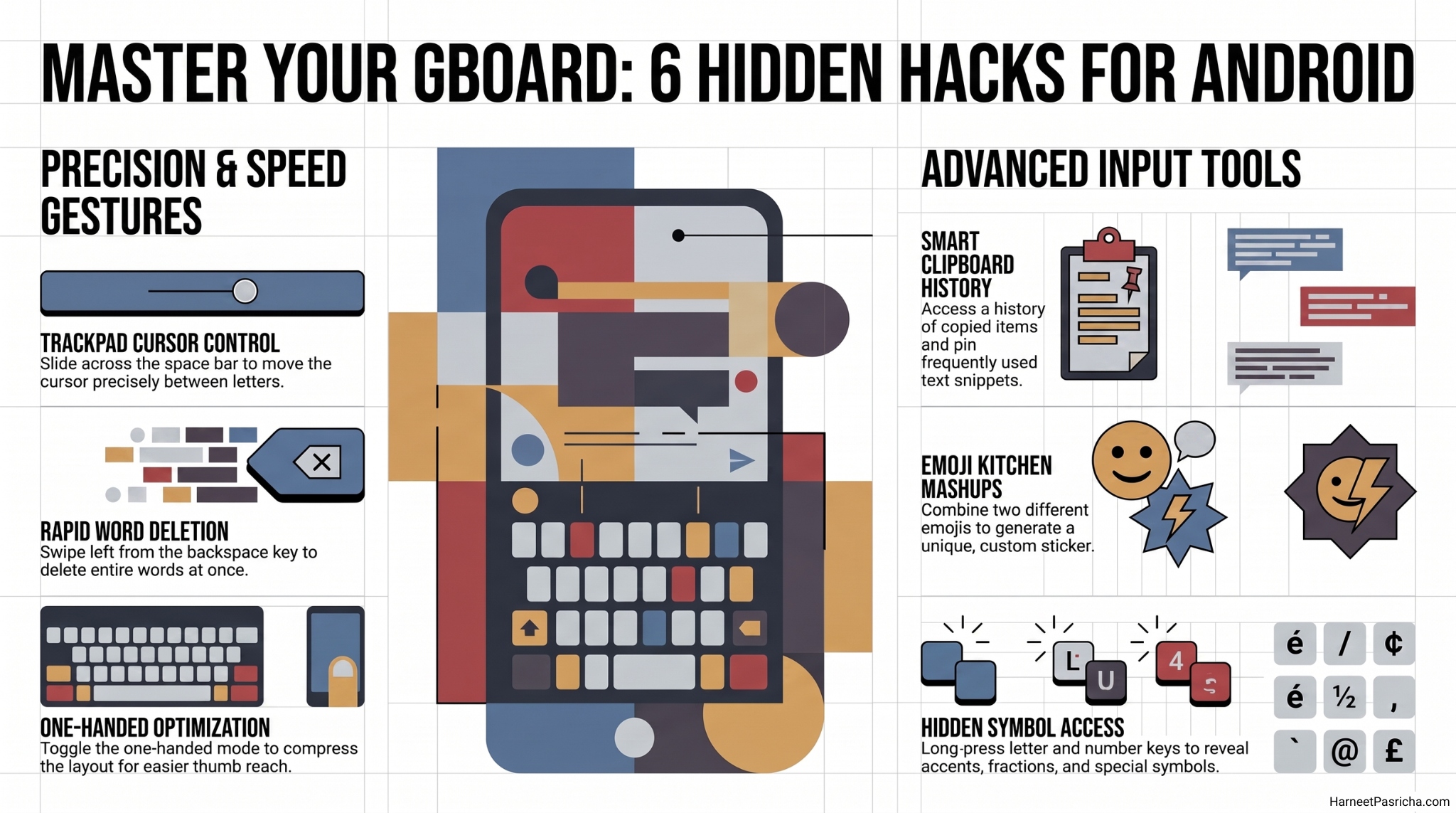
Instead of tapping blindly to place your cursor in the middle of a word, press and hold the space bar and slide your finger left or right. Gboard turns the whole keyboard into a trackpad, so you can land the cursor exactly where you need it without missing by a letter.
2. Swipe to delete instead of tapping
Skip the frantic backspace tapping. Press the delete key and slide your finger left across the keyboard. Gboard deletes word by word as you swipe, which is much faster for clearing out a sentence you want to redo.
3. Shrink the keyboard with one-handed mode
If you are juggling a phone in one hand and a coffee in the other, one-handed mode is a lifesaver. Tap the arrow or grid icon above the keyboard, choose the one-handed option, and Gboard shifts to one side of the screen so every key is within thumb reach.
4. Bring back anything you copied with clipboard history
Gboard quietly saves your recent clipboard items, so you do not have to bounce between apps to grab something you copied earlier. Tap the clipboard icon on the toolbar above the keyboard to see your history, then tap any item to paste it. You can even pin items you use often so they stick around.
5. Mix emoji into something new with Emoji Kitchen
Press and hold the comma key, slide up to the small emoji icon, then pick two emoji to combine. Gboard mashes them into a custom sticker you can drop straight into a chat. It sounds silly until you try it, then it becomes a habit.
6. Long press for hidden symbols and fractions
Most number and letter keys hide a second character if you press and hold. Long press a number to reveal fraction values, or hold a letter key to reveal accented characters and other symbols. It is a small habit that saves a trip to the symbols page.
If you want to dig even deeper into keyboard settings, I covered more Gboard tricks worth turning on in an earlier post. And if you want the full rundown of every feature straight from Google, their Gboard help center is worth a bookmark.
None of these hacks require anything beyond the keyboard you already have installed, which is honestly my favorite kind of productivity tip.
Gboard comes preinstalled on most Android phones, and if yours does not have it, you can download it free from the Google Play Store.
Gboard is available on iPhone as well, and most of these tricks including clipboard history, Emoji Kitchen, and the trackpad cursor trick work the same way there.
Open Gboard settings, tap Preferences, then make sure Clipboard is turned on so your copied items start saving.
Make sure you are pressing and holding the delete key before sliding, a quick tap will just delete one character at a time.
Yes, you can hide it from the keyboard toolbar in Gboard settings under Preferences, though most people end up enjoying it once they try it.
One-handed mode is a keyboard level setting, so it works anywhere Gboard appears, including messaging apps, browsers, and social apps.