

I had a solid little smart home setup going. A handful of Wemo light switches, all tied into Google Home, working exactly the way I wanted. Tap my phone, tell Google to turn off the lights, done.
Then Belkin pulled the plug.
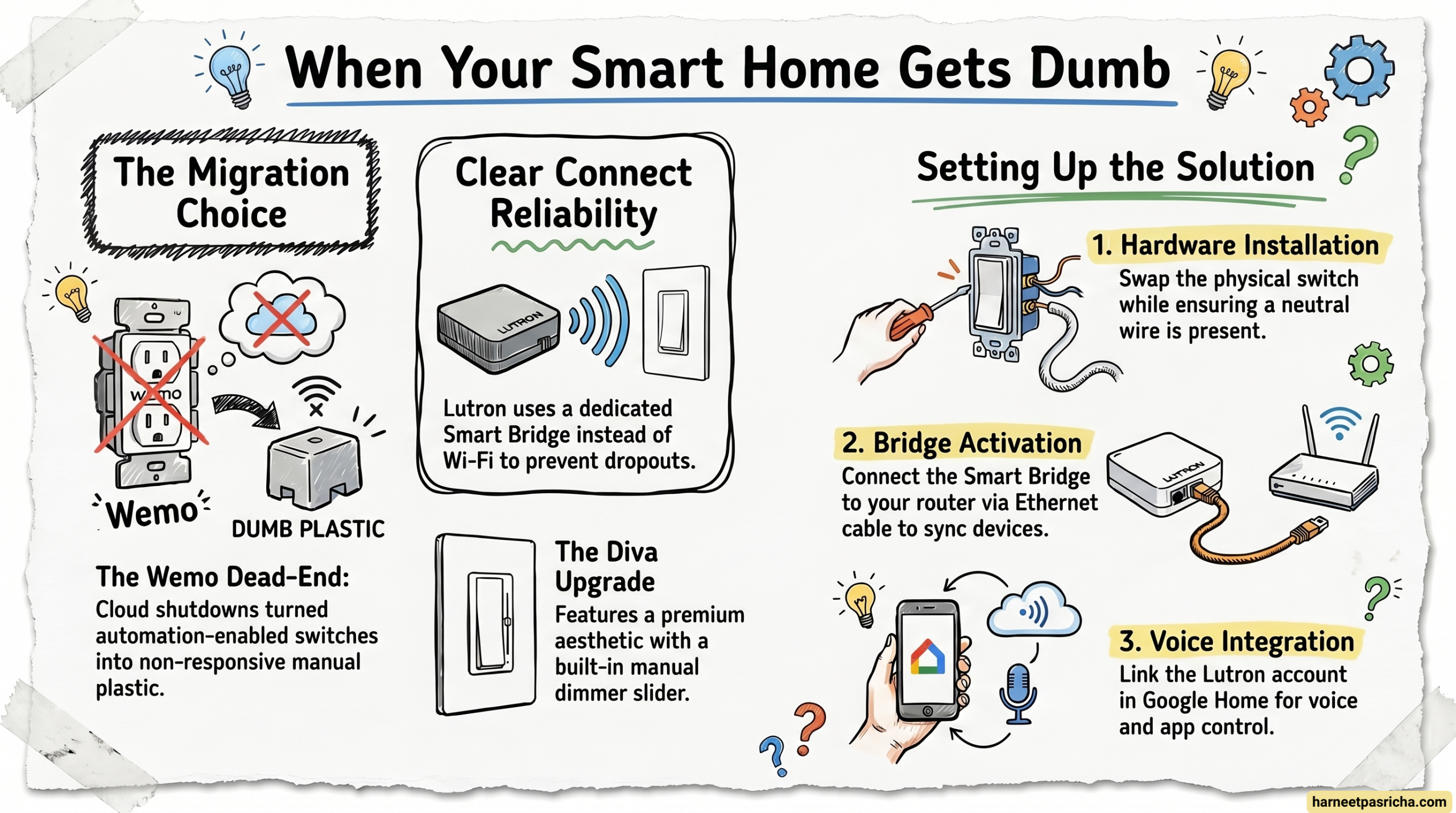
Wemo announced it was shutting down its cloud services, which meant those switches were heading toward becoming very expensive, very dumb pieces of plastic on my wall. No more remote control. No more Google Home. No more automation. Just manual switches that happened to have a Wi-Fi chip doing absolutely nothing.
It was frustrating, but it pushed me to finally upgrade to something better. That’s how I ended up with the Lutron Caseta Diva.
Why I Chose Lutron Caseta Diva
When your smart switches stop working, you think a little harder before buying the next ones. I had a few must-haves:
- Works with Google Home
- Reliable and well-supported
- Looks good on the wall
Lutron Caseta has been around for years, and it has a reputation for being rock solid. The Diva is their newer design, with a cleaner look and a handy little dimmer slider right on the switch. It felt like the right step up.
What You Need to Get Started
Before you run to the store, here is what the Caseta system requires.
The Caseta switches do not work over plain Wi-Fi the way Wemo did. They use Lutron’s own wireless protocol called Clear Connect, which means you need the Lutron Smart Bridge to connect everything to your home network and Google Home.
You will need:
- Lutron Caseta Diva switch (or a starter kit that includes the bridge)
- Lutron Smart Bridge
- The Lutron app on your phone
- A neutral wire at your switch location (check before buying)
How to Set It Up
- Install the switch — Turn off the breaker for that circuit first. Swap out the old switch for the Caseta Diva. Lutron includes clear instructions, and the wiring is straightforward if you have a neutral wire.
- Set up the Smart Bridge — Plug the bridge into your router with the included Ethernet cable. Power it on and wait for the light to go solid.
- Add your switch in the Lutron app — Open the Lutron app and create an account if you do not have one. Follow the in-app steps to add the bridge, then add your switch.
- Link Lutron to Google Home — Open the Google Home app, tap the plus icon, and choose “Set up device.” Select “Works with Google.” Search for Lutron Caséta and sign in with your Lutron account. Your switches will show up in Google Home within a minute.
- Name your devices and test — Give each switch a room and a name. Then try it: “Hey Google, turn off the living room lights.”
How It Compares to Wemo
Honestly? It is better in almost every way.
The Caseta Diva feels more premium. The dimmer slider is smooth and genuinely useful. Response time through Google Home is fast, and I have not had a single dropout since setting it up.
The one thing to know is the cost. Lutron is pricier than Wemo was, and you do need the bridge as an upfront investment. But Lutron has been in the smart lighting business for a long time, and the odds of them pulling a Wemo on me seem pretty low.
Purchase Lutron Starter Kit on Amazon
FAQ
No. The bridge is required. It connects the switches to your home network and makes Google Home integration possible.
Yes. Caseta works with Google Home, Amazon Alexa, and Apple HomeKit.
The switch still works manually. App and voice control will not work until your internet is back, but you will not be stuck in the dark.
Not necessarily. If you are comfortable turning off a breaker and swapping out a switch, the installation is manageable. Just make sure you have a neutral wire at the switch location first.
The upfront cost stings a little, but the bridge is what makes everything reliable. If you plan to add more switches over time, it pays for itself quickly.
Note: Some links in this post are affiliate links. If you buy through them, I may earn a small commission at no extra cost to you.