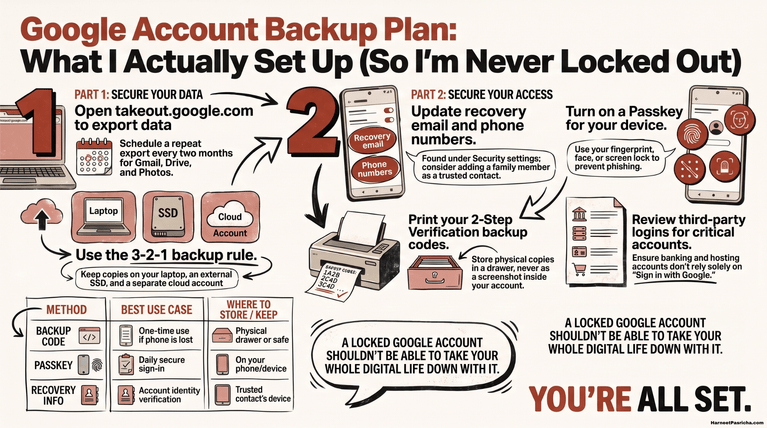

Most people set up their Google account once and never look back. But over time, things accumulate: old devices still signed in, forgotten apps with access to your data, outdated recovery options, and weak verification methods that made sense in 2018 but don’t anymore.
Taking 15 minutes to audit your Google security settings is one of the highest-leverage things you can do for your digital safety. Go to Security Checkup. Here’s exactly what to check.
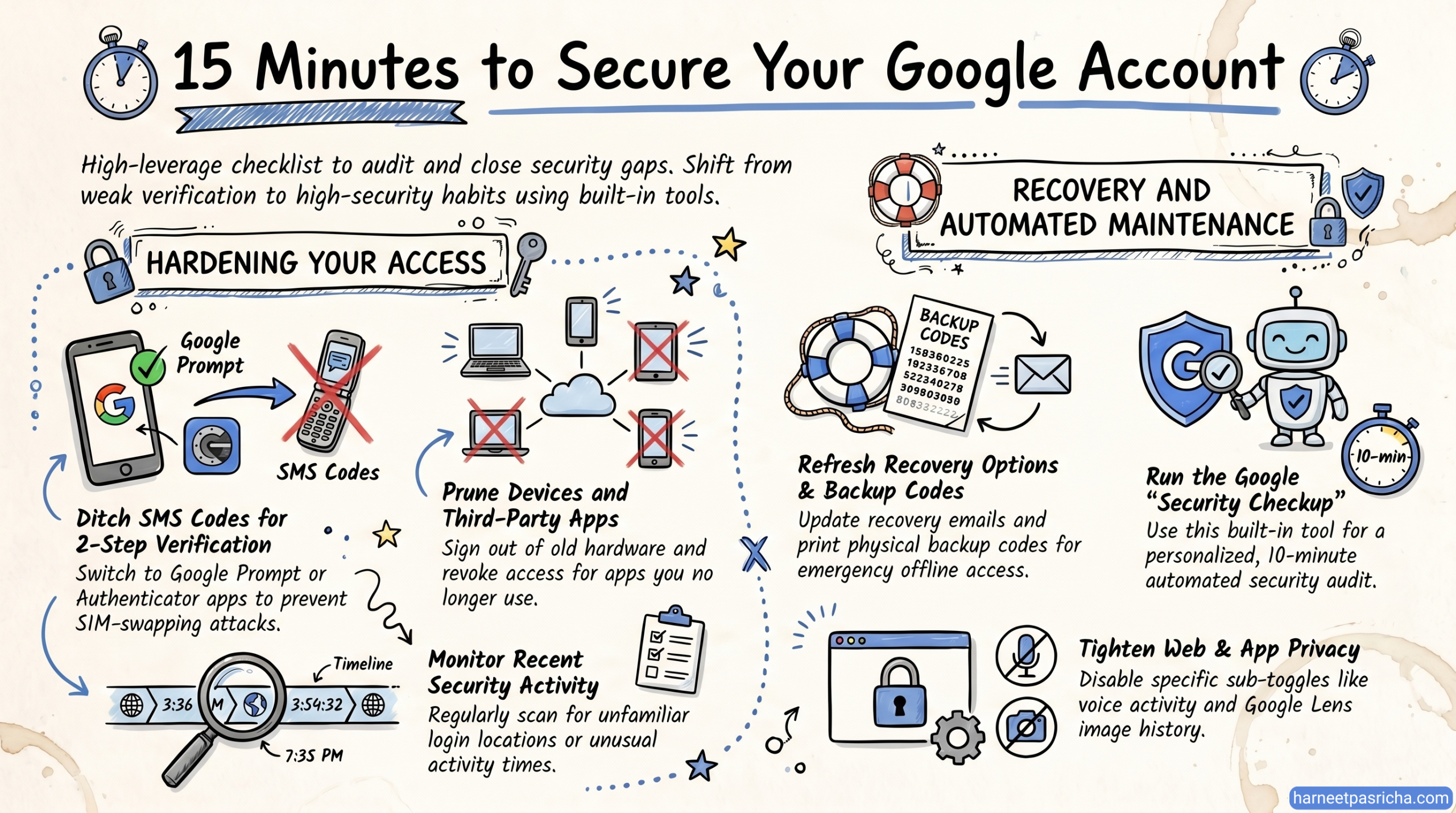
1. Ditch SMS codes for two-step verification
Two-step verification is non-negotiable, but not all methods are equal. If you’re still relying on SMS codes as your second factor, you’re more exposed than you think. SIM swapping — where someone convinces your carrier to transfer your number — is a well-known attack that completely bypasses SMS-based verification.
What to do: Go to myaccount.google.com → Security → 2-Step Verification. Switch to Google Prompt (tied to your physical device) or an authenticator app like Google Authenticator or Authy. Keep SMS as a last resort only, not your primary method.
2. Sign out of devices you no longer use
Every old phone, laptop, or tablet still signed into your account is a potential weak point. Former devices you’ve sold, lost, or just forgotten about may still hold active sessions.
What to do: Head to Security → Manage all devices. Review the full list and sign out of anything unfamiliar or outdated. If you see a device or location you don’t recognise, treat it as a red flag and change your password immediately.
3. Revoke third-party app access you’ve forgotten about
Every time you’ve used “Sign in with Google” to access an app or website, that connection persists until you actively remove it. These accumulate fast — quiz sites, old productivity tools, random services you tried once.
What to do: Go to Security → Third-party apps & services → See all connections. For anything you no longer use, click and remove the connection. Each one you delete is one fewer door into your account.
4. Refresh your recovery options and backup codes
Your recovery email and phone number are the keys to reclaiming your account if you get locked out. If they’re outdated, you could lose access permanently — or, worse, someone else could use them to take over.
What to do: Check that your recovery phone and email are current under Security → Ways we can verify it’s you. While you’re there, generate a fresh set of backup codes and store them somewhere offline (a printed copy in a drawer works fine). Old backup codes are invalidated when you generate new ones.
5. Check your recent security activity
Google logs security events — logins, access grants, password changes. Most people never look at this unless something goes wrong. Looking regularly means you can catch something suspicious before it escalates.
What to do: Under Security → Review security activity, scan for anything you don’t recognise: unfamiliar locations, unusual times, or devices you didn’t authorise. If anything looks off, use the in-page option to flag it and secure your account.
6. Tighten what data Google stores about you
This one goes slightly beyond security and into privacy, but the two are intertwined. Google’s Web & App Activity collects more than most people realise — including voice clips from Assistant interactions and images captured via Google Lens.
What to do: Go to myaccount.google.com → Data & Privacy → Web & App Activity. Rather than turning the whole thing off (which degrades the Google experience significantly), go into the sub-toggles and disable specific ones: voice and audio activity, search-related image activity from Lens, and location history if you don’t use it actively.
The fastest way to run this audit
Google has a built-in tool that walks you through all of the above: Security Checkup. It surfaces personalised recommendations based on your specific account state and flags anything that needs attention.
It takes under 10 minutes and you’ll finish knowing your account is actually in order — not just assumed to be.
While the guide is designed to be completed in about 15 minutes, the actual time depends on how many linked devices and third-party apps you need to review. Most users can finish the core security check in under 10 minutes.
The Google Security Checkup is a built-in dashboard that automatically scans your account for vulnerabilities. It flags issues like unrecognized devices, inactive recovery methods, and risky third-party app permissions in one centralized location.
Yes. 2FA is the single most effective way to prevent unauthorized access. Even if someone steals your password, they won’t be able to log in without the second factor (like a prompt on your phone or a physical security key).
You should provide both a secondary email address and a mobile phone number. Ensure these are accounts and devices you have permanent access to, as they are your only way back into your account if you forget your password.
It is a good habit to review these every few months. Over time, you may stop using certain apps that still have access to your Google data. Removing unused apps reduces your “attack surface.”
Generally, no. Performing a security checkup will not sign you out of your current, recognized devices. However, if you find a device you don’t recognize and choose to “Sign Out” of it, that specific device will lose access immediately.
App Passwords are 16-digit codes that allow older apps or devices (that don’t support modern security standards) to access your Google Account. If you use modern apps and have 2FA enabled, you likely won’t need these.
This is why “Backup Codes” are critical. During your 15-minute security sweep, you should download or print your 8-digit backup codes and store them in a safe, physical location. These allow you to bypass 2FA in an emergency.