
YouTube Keyboard Shortcuts I Use Every Day
I used to fumble around clicking tiny buttons every time I wanted to skip ahead or check a caption on YouTube. Once I actually learned the keyboard shortcuts, watching videos got a lot smoother. No more hunting for the volume slider or missing the pause button because the cursor drifted off screen.
Here’s the full rundown of YouTube keyboard shortcuts that make browsing and watching way less annoying.
Skipping and jumping around
These are the ones I use constantly, especially with longer videos or tutorials.
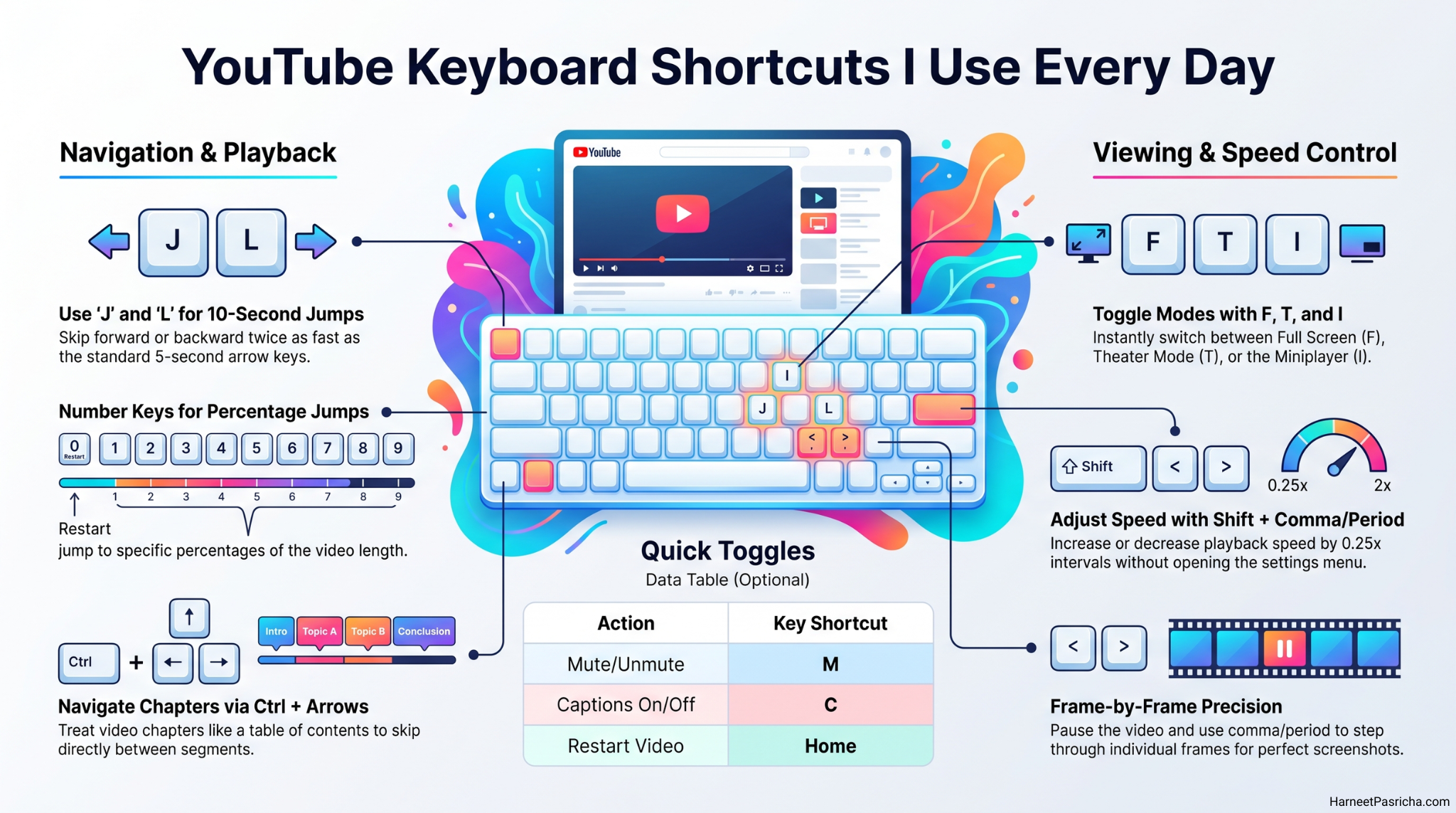
- Right or left arrow: skip forward or back 5 seconds
- J or L: jump back or forward 10 seconds
- Number keys 0 through 9: jump to a percentage of the video (0 is the start, 5 is halfway, 9 is near the end)
- Ctrl plus right or left arrow: jump to the next or previous chapter
- Home: restart the video
- End: jump to the very end
If a video has chapters, the chapter jump shortcut alone is worth memorizing. It turns a long video into something you can navigate almost like a table of contents.
Controlling playback speed and volume
- Shift plus comma or period: slow down or speed up playback by 0.25x at a time
- Up or down arrow: raise or lower volume by 5%
- M: mute or unmute instantly
I lean on the speed shortcut a lot for lectures and long interviews. Bumping things up to 1.5x without opening the settings menu saves a surprising amount of time.
Switching how you watch
- F: toggle full screen
- T: toggle theater mode
- I or Esc: toggle the miniplayer
Theater mode is my go to when I want a bigger picture without going full screen, especially if I’m switching between tabs.
Captions and playlists
- C: turn closed captions on or off
- Plus or minus: increase or decrease caption size
- Shift plus N or P: skip to the next or previous video in a playlist
If you ever need a clean screenshot from a video, pause it first, then tap comma or period to step through it frame by frame. It’s a small trick but genuinely useful for grabbing a specific moment.
Can you customize these shortcuts?
Not through YouTube itself. There’s no built in settings page for remapping keys. If you want custom shortcuts, browser extensions like ImprovedTube or Enhancer for YouTube can fill that gap, letting you assign your own keys for things like liking a video or changing quality on the fly.
Most people, though, will find that the built in shortcuts above cover almost everything you’d want to do without installing anything extra.
I paired these shortcuts with a few tweaks from my guide to YouTube settings worth changing and the combination made a real difference in how I use the app day to day. For the complete official list straight from Google, check out YouTube’s own keyboard shortcuts help page.
Once these become muscle memory, going back to clicking through menus feels like a step backward.
Use the right arrow key to jump forward 5 seconds, or press L to jump forward 10 seconds. If a video has chapters, hold Ctrl and press the right arrow to skip straight to the next one.
Yes. Press Shift plus period to speed up playback by 0.25x each time, or Shift plus comma to slow it down. It works instantly without opening any menus.
Press F to toggle full screen mode on or off. Press T instead if you want theater mode, which enlarges the video without taking over your whole screen.
Yes. Pressing any number key from 0 to 9 jumps you to that percentage of the video. For example, pressing 5 takes you to the halfway point.
Not natively. YouTube does not offer a built in way to remap shortcuts, but browser extensions like ImprovedTube, Enhancer for YouTube, and Tweaks for YouTube let you set custom keys for extra actions.
No. These shortcuts are built for the desktop web player. The YouTube mobile app relies on touch gestures instead.