

[Android Only]
I used to have a routine every time I left the house. Find the Maps icon buried in a folder, wait for it to open, type in an address, correct the autocomplete when it guessed wrong, then finally hit Directions. By the time I was actually navigating, I had already wasted a good ten or fifteen seconds standing on the sidewalk.
Then I found out Google Maps has home screen shortcuts, and honestly, it changed how often I even open the app anymore.
What these shortcuts actually do
These aren’t your typical app icons. They’re widgets that go straight to a destination and mode of transport you pick ahead of time. Tap the icon and Maps opens already routing you home, to work, or wherever else you set it up for. No typing, no searching, no correcting a wrong guess.
You won’t find this option inside the Google Maps app itself. It lives in your phone’s widget picker instead, which is probably why so many people never stumble onto it.
Setting one up
Here’s how to add your first shortcut.
- Press and hold an empty spot on your home screen.
- Tap Widgets, then scroll down and select Maps.
- Choose the Directions widget and drag it onto your home screen.
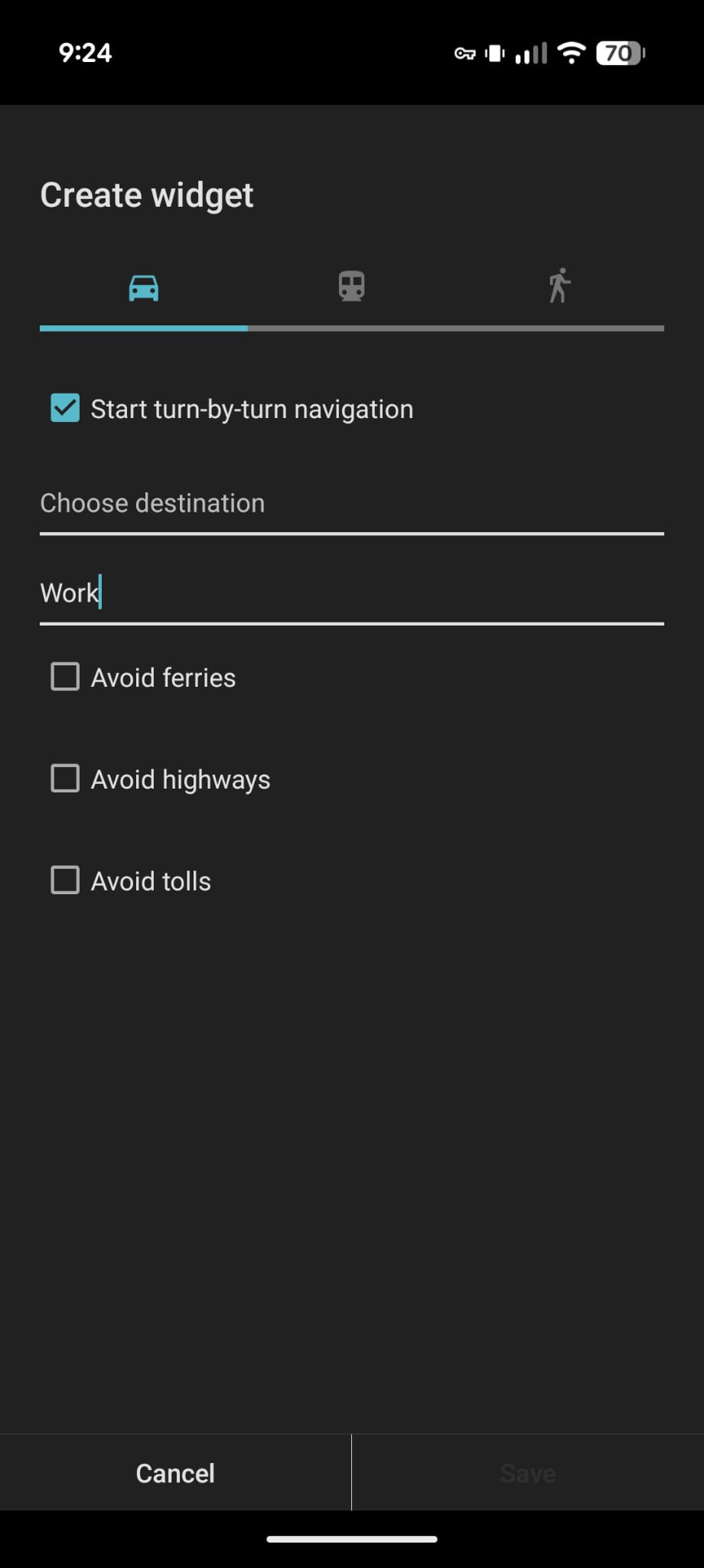
- Pick a transport type: driving, walking, cycling, or transit.
- Enter your destination and give the shortcut a name, like “Home” or “Office.”
- Tap Save.
The icon that shows up reflects your transport choice, so a transit shortcut gets a little train icon and a cycling one gets a bike. You can set this up directly through the Maps widget menu, and Google’s own instructions cover a few extra preference options too, like avoiding tolls by default.
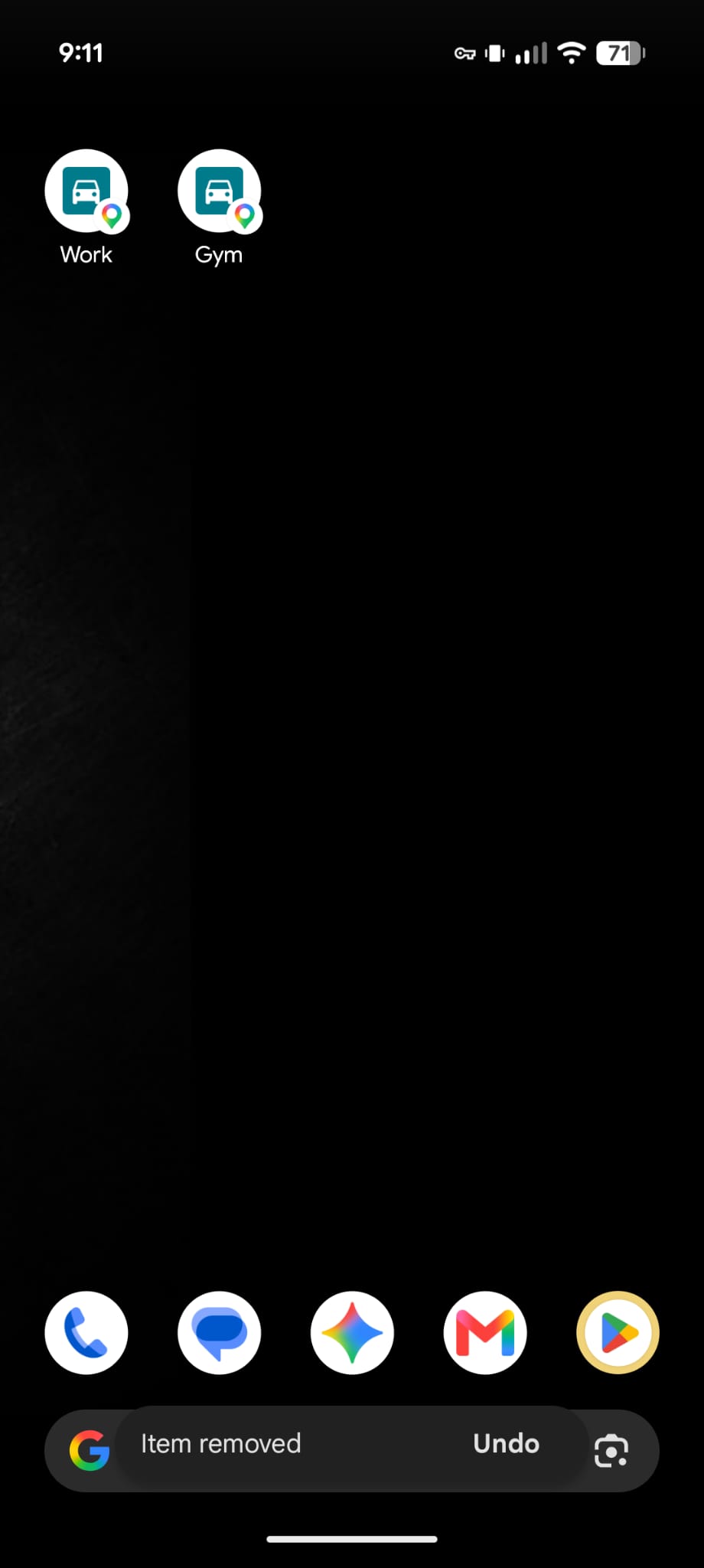
Why I ended up with more than one
If you commute to the same office or drop kids at the same school every day, this is worth setting up before your week gets busy. It sounds like a small thing until you realize how many times a week you actually navigate to the same handful of places.
One thing worth knowing if your home screen already feels crowded: archiving apps you rarely open instead of deleting them can clear up space without losing anything, which makes room for shortcuts like these.
A shortcut skips straight to directions for one destination and transport mode you already picked. A regular app icon just opens Maps to whatever screen it last showed.
Yes, this feature works on Android 7.1 and newer, which covers the vast majority of phones in use today.
Absolutely. You can set up separate shortcuts for the same destination using different transport modes, like one for driving and one for transit.
Yes. Tapping the shortcut opens live navigation, so you’ll see current traffic and any transit delays just like you would searching manually.
You can delete it like any other home screen widget by pressing and holding it. To change the destination or transport mode, remove it and add a new one with your updated details.
Google Maps offers similar shortcut widgets on iOS, though the setup steps differ slightly since it uses Apple’s widget system instead.