
I’ve been copying and pasting on a Mac for years, and until recently that meant one rule I never questioned: copy something new, and whatever you had before is just gone. If you’ve ever copied a second thing before pasting the first, you know the little jolt of “wait, where did that go.”
Turns out I didn’t need to keep living like that. macOS Tahoe quietly built a real Mac clipboard history into Spotlight, and it’s been sitting there this whole time, just switched off by default.
What Changed in macOS Tahoe
Starting with macOS Tahoe (macOS 26), Spotlight can keep a running log of what you copy, not just the last item. Instead of overwriting your clipboard every time you hit Command-C, it stores a short list you can scroll back through and pick from. Text, links, and images all get saved, each one tagged with the type of content and when you copied it.
It’s not a replacement for a full-blown clipboard manager like Alfred or Maccy. There’s no permanent pinning, and history clears itself after a set window. But for the everyday moment of “I know I copied that ten minutes ago,” it’s exactly enough.
How to Turn On Clipboard History
The feature isn’t active until you flip it on, and Apple buries it a little.
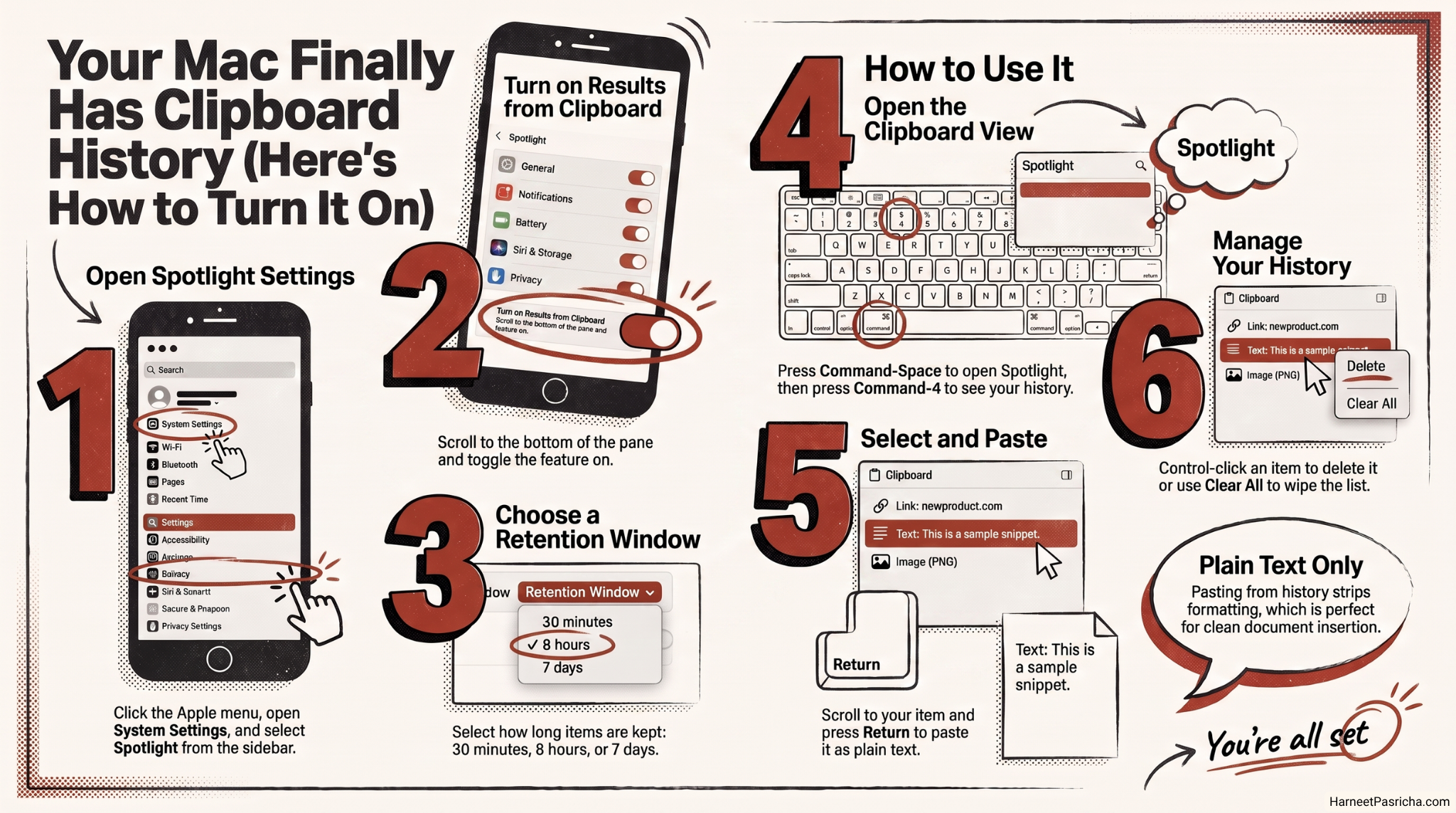
- Click the Apple menu and open System Settings.
- Go to Spotlight in the sidebar.
- Scroll to the bottom of the Spotlight settings pane until you see Results from Clipboard.
- Turn the toggle on.
- Choose how long you want items kept: 30 minutes, 8 hours, or 7 days.
If you skip straight to using it instead, Spotlight will offer to turn the feature on the first time you open the clipboard view anyway.
How to Use It
Once it’s on, pulling up your history takes two keystrokes:
- Press Command-Space to open Spotlight, the same way you always have.
- Press Command-4, or click the clipboard icon in the Spotlight window, to jump to your clipboard history.
- Scroll or use the arrow keys to find the item you want.
- Press Return, or double-click it, to paste it into whatever app is active.
If you want to reuse something without pasting it immediately, click the small button next to an item instead. That moves it to the top of the list, so a regular Command-V grabs it next time. You can also Control-click any item to delete it, or use the Clear All option to wipe the whole list in one go.
A Few Things Worth Knowing
Pasting from Spotlight strips formatting, so anything you pull from history lands as plain text. That’s actually handy when you want to drop text into a document without carrying over someone else’s font and colors.
A couple of gaps are worth flagging too. Anything you copy on your iPhone or iPad through Universal Clipboard won’t show up in this history, and passwords copied from Apple’s Passwords app are deliberately excluded. Very long text (beyond roughly 16,000 characters) also won’t get saved, so a full multi-page document copy still behaves like the old single-item clipboard.
If your Mac has felt a little unpredictable since you updated to Tahoe, this is one of the genuinely good additions that came with it, and it’s worth turning on even if you’ve been putting off exploring what else changed. For the full rundown straight from Apple, their support guide on searching Clipboard history in Spotlight covers the basics too.
For most people who just want to grab something they copied a little while ago, this built-in version is more than enough. If you’re someone who leans on your clipboard constantly throughout the day, for coding snippets or repeated templates, you’ll probably still want a dedicated app. But as a free feature that was already sitting in your System Settings, it’s worth turning on today.
FAQ
Yes. This feature only exists starting with macOS Tahoe (macOS 26). If you’re on an older version of macOS, you won’t see the Results from Clipboard option in Spotlight settings, and you’ll need a third-party clipboard manager instead.
It’s off by default, so you have to turn it on manually. Go to System Settings, then Spotlight, then scroll to the bottom and enable Results from Clipboard. Spotlight will also offer to enable it the first time you try to open the clipboard view.
You choose the retention window yourself: 30 minutes, 8 hours, or 7 days. Once an item passes that window, it’s automatically removed from the list.
No. Universal Clipboard still lets you copy on one Apple device and paste on another, but items copied that way don’t get added to Spotlight’s clipboard history log.
For everyday text and links, yes. Apple excludes copies from its own Passwords app, and pasting from history strips formatting. That said, if you regularly copy sensitive information like card numbers, it’s worth sticking to a shorter retention window like 30 minutes.
Yes. Control-click any item in the clipboard history list and choose Delete. Use Clear All only when you want to wipe the entire list at once.