

A friend of mine got locked out of her Google account for six days last month. No email, no photos, no calendar, nothing, because a security check flagged her sign-in and support took nearly a week to sort it out. That scared me enough to finally build a real Google account backup plan instead of hoping for the best. Here’s exactly what I did, in the order I did it.
Step 1: Download your data with Google Takeout
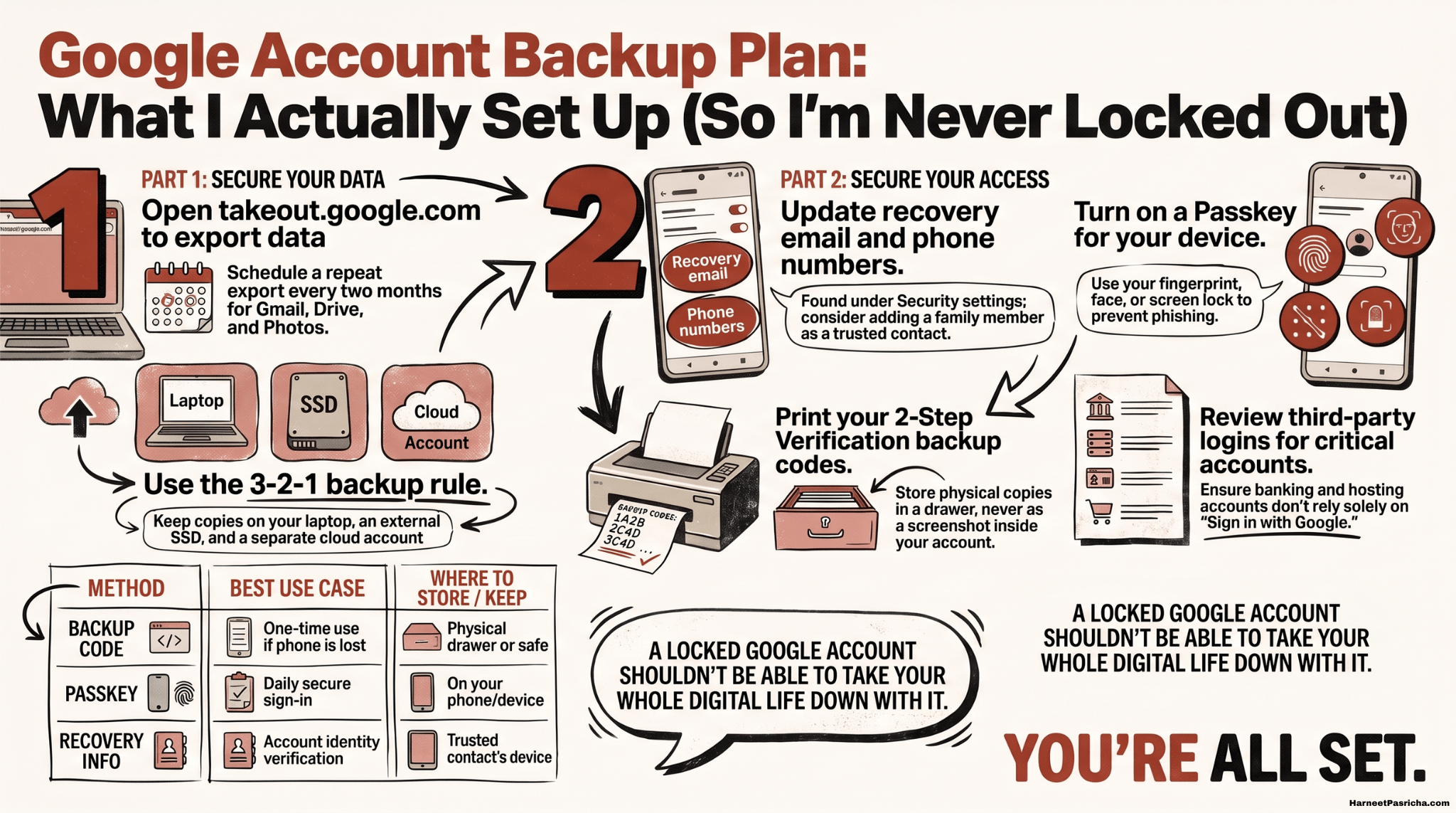
Go to takeout.google.com and choose the services that matter most to you. For me that was Gmail, Drive, Photos, and Contacts. I exported each one separately instead of bundling everything into one giant archive. Smaller exports finish faster and are less likely to fail partway through. Google also lets you schedule a repeat export every two months, which I turned on so I never have to remember to do this again.
Step 2: Store it using the 3-2-1 rule
One backup is really just a single point of failure wearing a disguise. I keep three copies of my important files, on two different types of storage, with one of those copies somewhere other than my house. In practice that means a copy on my laptop, a copy on an external drive, and a copy in a separate cloud account that has nothing to do with Google.
For the external drive, I ended up going with a Samsung T7 Shield portable SSD since it’s small enough to toss in a bag and rugged enough that I don’t worry about it. A SanDisk Extreme Pro portable SSD is a solid alternative if you want something similarly fast and durable.
Heads up: some links here are affiliate links. If you pick something up through them, I get a small commission. It does not change the price for you at all.
Step 3: Tighten your account recovery options
Inside your Google Account, go to Security, then look for your recovery email and phone number. I added both and asked a family member if I could list them as a trusted contact too. None of this lets anyone else see or control your account. It just gives Google a faster way to confirm you’re really you if something goes wrong.
Step 4: Print your backup codes, don’t screenshot them
Under Security, then 2-Step Verification, you’ll find an option for backup codes. I printed mine and put them in a drawer, not in Gmail or Drive, since those are exactly the places I’d lose access to during a lockout. If you’ve already covered the basics of securing your account, my guide to closing common Google security gaps is a good next stop.
Step 5: Set up a passkey
Passkeys use your fingerprint, face, or screen lock instead of a password, which makes phishing a lot harder to pull off. You’ll find the option under Security, then “How you sign in to Google.” I set one up on my phone in under two minutes, and Google’s own passkey documentation walks through the rest if your menu looks slightly different from mine.
Step 6: Untangle your important logins from Google
This one took the longest. I went through my banking, hosting, and domain accounts and made sure none of them relied only on “Sign in with Google.” A locked Google account shouldn’t be able to take your whole digital life down with it.
None of this took more than thirty minutes, spread across a weekend morning. It’s the kind of task that feels unnecessary right up until the moment it isn’t.
FAQ
Google Takeout is Google’s own tool for exporting a copy of your data from services like Gmail, Drive, and Photos. It’s built and run by Google, so it’s safe, it just doesn’t delete or move anything from your account, it only copies it.
Every couple of months is a reasonable rhythm for most people. Google Takeout even lets you schedule a repeat export automatically, so you don’t have to remember to do it manually.
A backup code is a one-time password you use if you can’t get your usual verification method, like when your phone is lost. A passkey replaces your password entirely and uses your fingerprint, face, or screen lock to sign you in.
Anywhere except inside your Google account. Gmail and Drive are the first things you lose access to during a lockout, so a printed copy in a drawer or safe works better than a digital note saved there.
Yes, as long as you’ve set up backup codes or a secondary recovery method ahead of time. Without one of those in place, recovery can take several days and isn’t guaranteed to succeed quickly.
If a service you depend on, like banking, hosting, or your domain registrar, only lets you sign in through Google, a Google lockout locks you out of that too. Adding an independent email and password to your most important accounts is worth the extra few minutes.