
I used to think Google Maps was pretty much locked into whatever it shipped with. Type in a destination, follow the blue line, done. But after digging through the app’s settings menu one weekend, I found a handful of Google Maps settings that quietly changed how much I actually enjoy driving with the app open. None of them are hidden exactly, they just live a few taps deeper than most people bother to go.
Here are the five I turned on, and why each one earned a permanent spot in my daily drive.
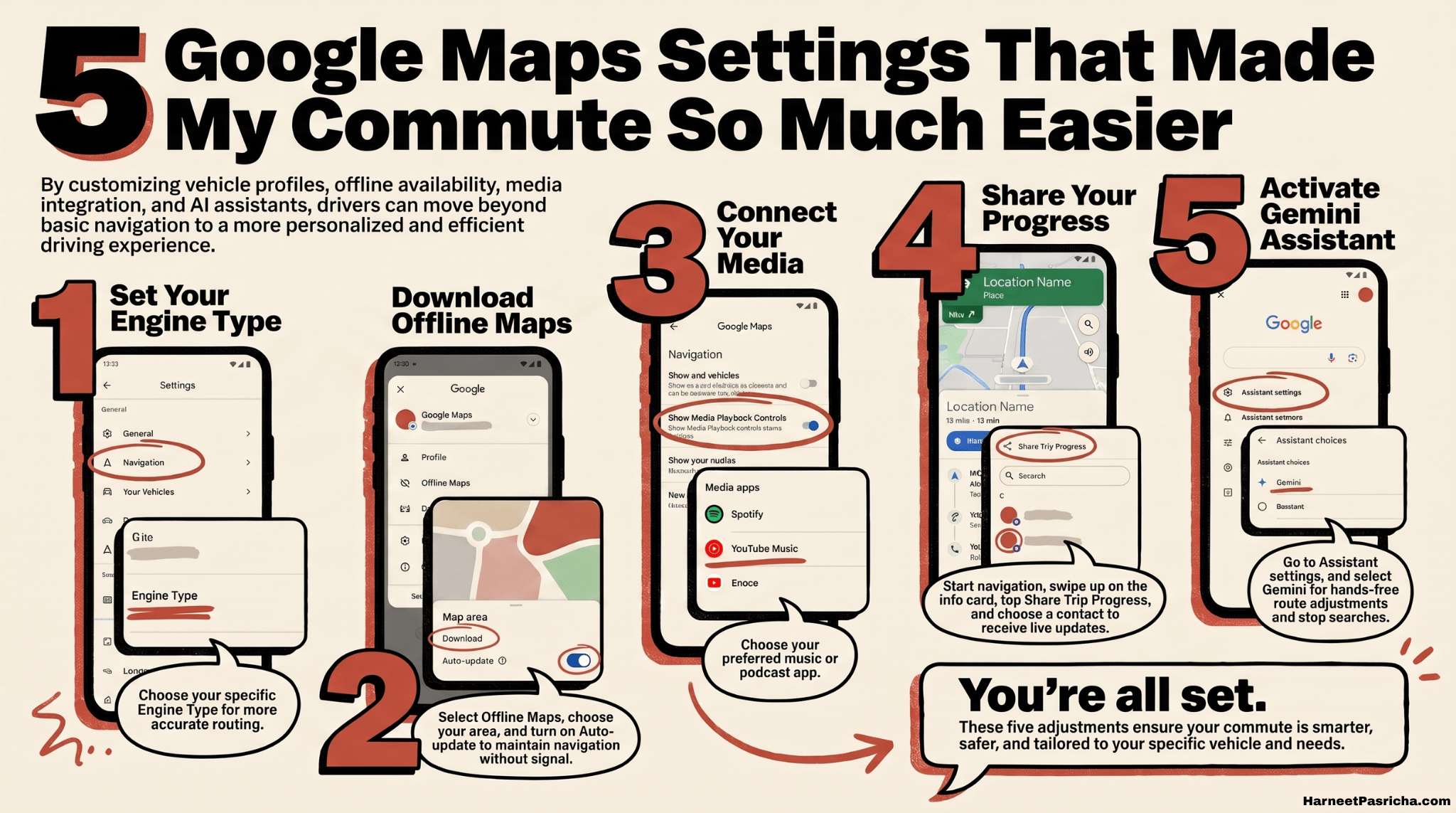
Set Up Your Car Profile So Routes Actually Make Sense
Google Maps assumes you’re driving a regular gas car unless you tell it otherwise. If you drive a hybrid or an EV, that default can mean routes that don’t account for charging stops or battery range.
- Tap your profile picture, then go to Settings.
- Open the Navigation menu and tap Your Vehicles.
- Choose your Engine Type: Gas, Diesel, Hybrid, or Electric.
- If you picked Hybrid or Electric, add your plug type under Plugs & Adapters so charging stations show up correctly.
Once I set mine up for my 2025 Volkswagen Atlas, route suggestions started matching how I actually drive instead of a generic average.
Download Offline Maps Before You Need Them
I learned this one the hard way when we lost cell service during our family drive to Niagara Falls. Downloading maps ahead of time means Google Maps can still guide you even if your connection drops.
- Tap your profile picture, then tap Offline Maps.
- Tap Select Your Own Map.
- Pinch to adjust the area, covering your whole route if you can.
- Turn on Auto-update Offline Maps and <a href=”https://support.google.com/maps/answer/6291838″>Auto-download Recommended Maps</a> so the download stays current without you thinking about it.
Share Your Trip With Someone Who Cares
This is the setting I use the most now, especially on longer solo drives. It lets someone know where you are without you having to text updates the whole way.
- Start navigation as usual and tap Start.
- Swipe up on the info card at the bottom.
- Tap Share Trip Progress and choose who to send it to.
Maps keeps sharing your live location until you arrive or manually stop it, and you have to turn it on again for each trip, which honestly feels like the right amount of privacy.
Let Google Maps Control Your Music
If you’re tired of switching between Spotify and Maps mid drive, this fixes it.
- Go to Settings, then Navigation.
- Tap Show Media Playback Controls.
- Choose your music or podcast app and confirm.
Now playback controls sit right at the bottom of the navigation screen. Google built this specifically so drivers wouldn’t have to app-switch while moving, and in practice it does exactly that.
Bring Gemini Along for the Ride
Gemini has been showing up across more of Google’s apps lately, including Android Auto, and Google Maps is no exception. It is a great way to control your smart home automation setups (like your NFC tags and Lutron switches) right from the road. Once it’s set as your default assistant, you can ask it to add a stop, find a coffee shop along your route, or just answer a question, all without touching your phone.
To turn it on, open the Google app, go to Assistant settings, and select Gemini as your assistant. Say “Hey Google” during navigation to bring it up.
None of these Google Maps settings are complicated to find once you know where to look. With these adjustments, your daily commute will be much more personalized and efficient. Before you hit the road, here is a quick wrap-up of common questions to make sure you are fully prepared.
FAQ
No. Basic turn-by-turn navigation works without signing in. You just need to be signed in to use features like trip sharing, offline map syncing across devices, or Gemini.
It depends on how large an area you select. A city or a single route usually takes up a modest amount of space, but downloading an entire region can add up quickly, so it helps to zoom in and grab only what you need.
Sharing continues until you reach your destination or turn it off manually. It does not restart automatically for future trips, so you’ll need to share again each time you want someone tracking your drive.
Not quite. On Android, Gemini can replace Google Assistant entirely and control more of your phone. On iPhone, it’s more limited and mainly handles navigation and search tasks inside Maps itself.
You usually don’t need to. If you’re running Maps through your car’s display via Android Auto or CarPlay, media controls are already handled by the car’s system. The in-app controls are more useful when you’re using your phone directly.
Yes. Setting your engine type helps Maps factor in things like fuel efficiency or charging stops, so EV and hybrid drivers in particular tend to see more relevant route suggestions once it’s set up.