
I dug through a drawer last week looking for an old lease agreement and realized something. I have not touched my desk scanner in months. Every bill, warranty card, and signed form I care about is already sitting in my Google Drive document scanner history, scanned straight from my phone.
It is not a new feature exactly, but Google quietly overhauled it this year, and the update changes how well it actually works.
How I Scan a Document in Under a Minute
Here is the exact process I use every time:
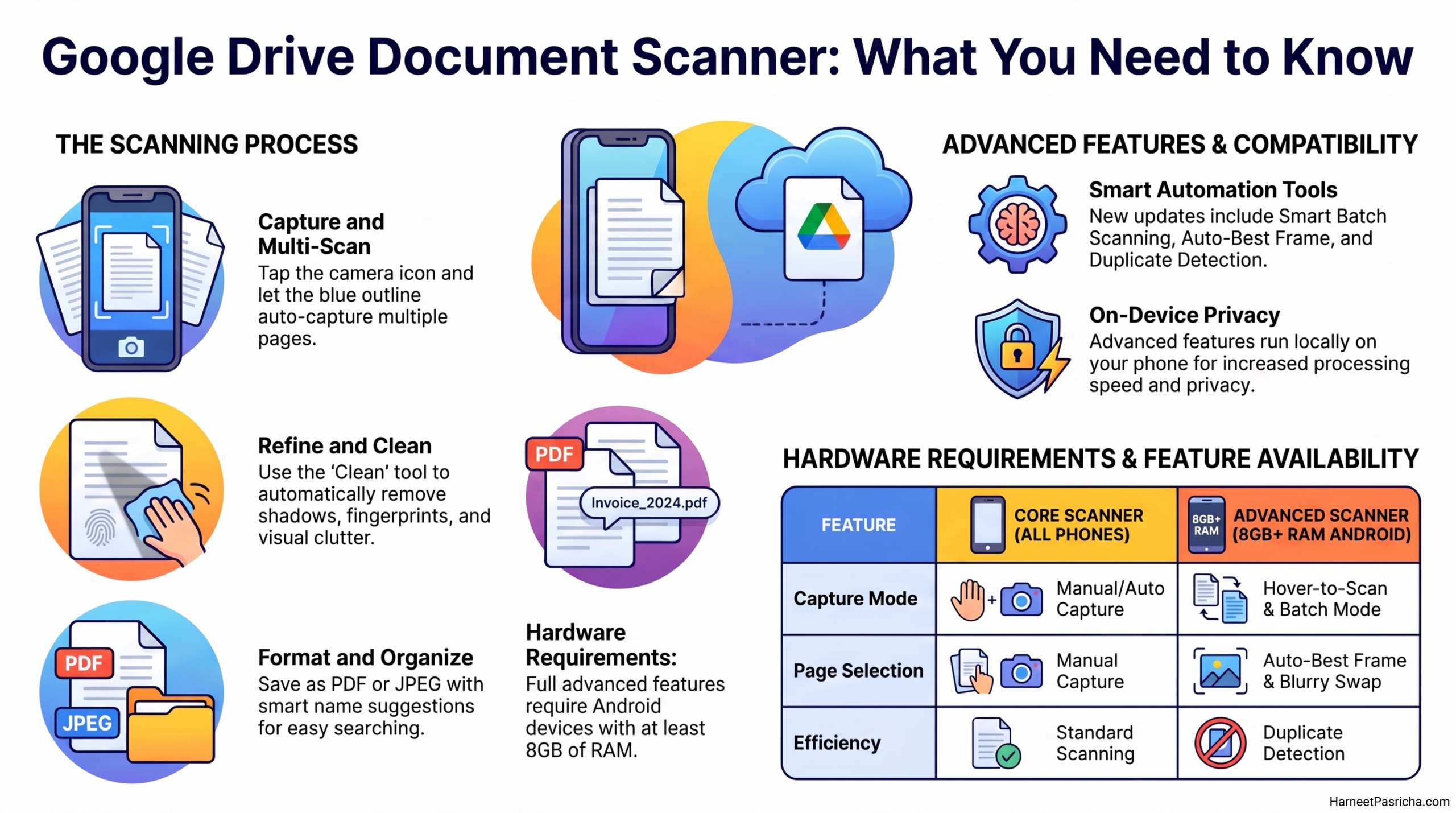
- Open the Google Drive app and tap the camera icon in the bottom right corner.
- Point your phone at the document. A blue outline appears around the page automatically.
- Let the app capture the shot, or tap the shutter yourself if it does not fire.
- Move to the next page to keep scanning. Drive adds each new page to the same document.
- Tap the arrow when you are done, then crop, rotate, or run the Clean tool to wipe out shadows and fingerprints.
- Pick a file name (Drive usually suggests a good one), choose PDF or JPEG, select a folder, and upload.
That last step is the part I actually love. The file lands in Drive already backed up, already named sensibly, and already searchable.
The Newest Tools Are Not on Every Phone
This is the part most coverage of the update skips over. Google’s redesigned scanner added Smart Batch Scanning, Auto-Best Frame, and Duplicate Detection, letting you hover your phone over a stack of pages the way you would film a video instead of tapping the shutter for each one. It is genuinely faster.
But that version runs entirely on your device for speed and privacy, which means Google currently limits it to Android phones with at least 8GB of RAM. If you are on an older or lower-spec Android phone, or on iPhone, you still get the reliable core scanner. You just will not see the hover-to-scan trick or the automatic blurry-frame swaps yet.
Why I Have Not Touched My Physical Scanner Since
A dedicated scanner still does one thing well: it is fast if you already own one. But I do not have to think about drivers, cables, or which app to open. According to Google’s own help documentation, the scanner is built directly into the Drive app on Android and iOS, and everything you capture uploads straight to your account.
If you want to see what else is buried in the app beyond scanning, I rounded up a few more in my post on Google Drive features most people ignore, including a couple I use just as often as the scanner itself.
At this point, my phone has fully replaced the scanner sitting under my desk. I just have not gotten around to giving it away yet.