
I have had a Google speaker running in my house for years and only recently went digging through the settings menu properly. Turns out there is a handful of features that quietly make the whole setup better, and most people never turn them on. Here are the ones I actually use now.
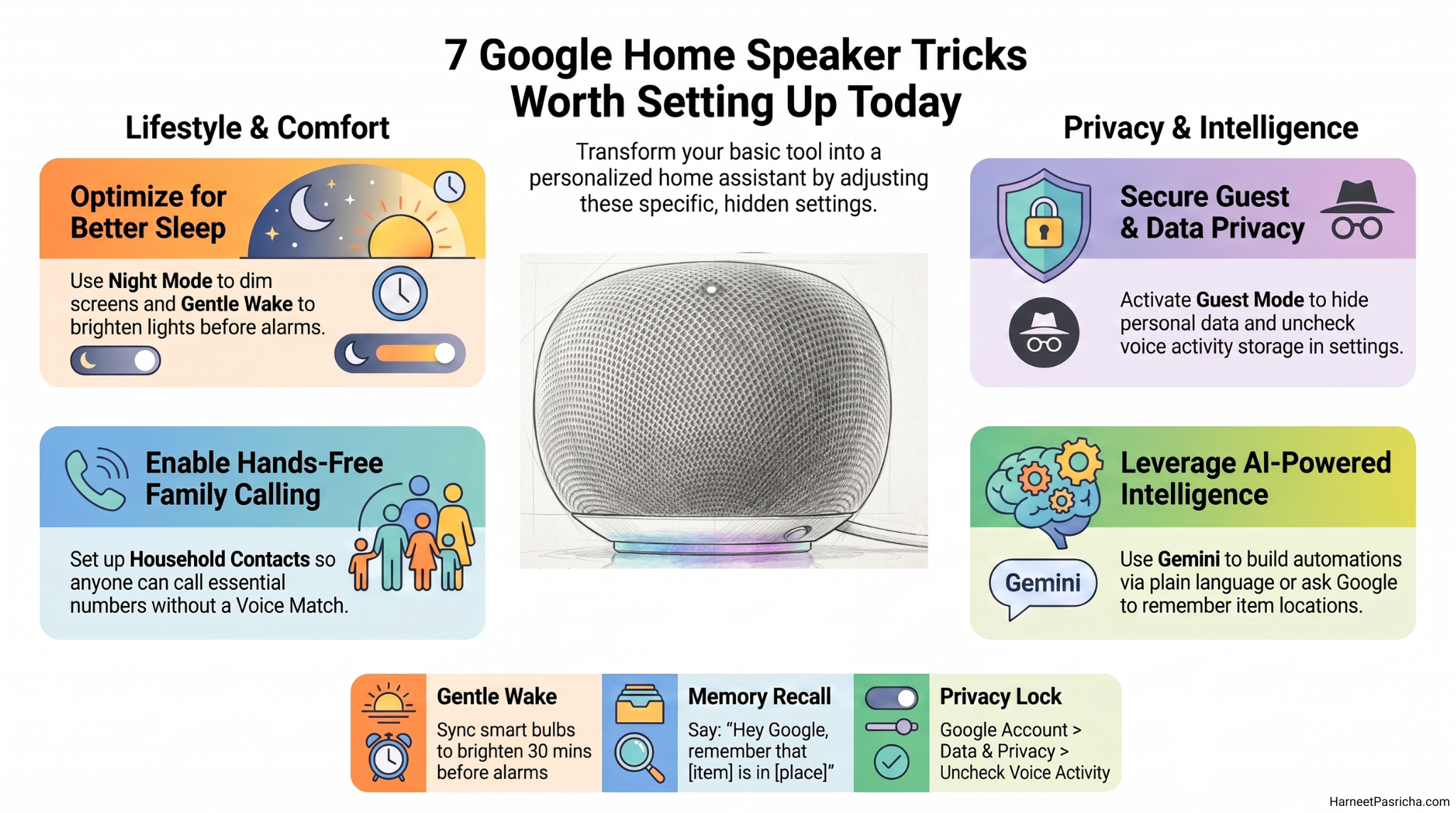
1. Turn on Night mode so it stops waking the kids
If your speaker or display sits anywhere near a bedroom, Night mode is worth setting up immediately. It lowers the volume and dims the screen during hours you choose. Open the Google Home app, tap Home, then All devices, long press your speaker, go to Settings, then Notifications and digital wellbeing, and turn on Night mode. You can pick exactly when it starts and ends and which days it applies.
2. Use Guest Mode when people are staying over
I did not realize this existed for a long time. Guest Mode lets visitors use your speaker without touching your personal data. It skips your calendar, contacts, and search history, and it does not save any of the recordings or activity from that session. Just say “Hey Google, turn on Guest Mode” and your house guests can ask for the weather or play music without digging through your Gmail in the process.
3. Set up household contacts for hands free calling
Anyone in the house, including kids or a babysitter, can call an important number just by saying a name, even if they have never used voice match on that device. Add people under your profile icon, then Home settings, Communication, Household contacts. One thing to know: your speaker cannot dial 911 directly by voice. That requires a Google Home Premium plan with sound detection enabled.
4. Let your speaker remember things for you
This one sounds small but has saved me multiple times. Say “Hey Google, remember that the spare key is in the kitchen drawer” and it will actually recall that later when you ask. It works well for holiday decorations, tools you only need twice a year, or anything you are tired of forgetting.
5. Build automations without touching a single toggle
If you have Gemini for Home on your account, you can skip the manual automation builder entirely. Go to Add, Automations, Help me create, then just describe what you want in plain language. It will build the routine for you, including suggestions based on the devices you already own. This is the same Gemini that is showing up across Google’s other apps now, and it genuinely simplifies a process that used to take a lot of manual setup.
6. Get a gentler wake up with synced lights
If you have smart bulbs, Gentle Sleep and Wake slowly brightens your lights over the 30 minutes before your alarm instead of jolting you awake with sound alone. Nest display owners can also set this up directly under Alarms.
7. Lock down what gets stored
Head into your Google Account under Data and Privacy, then Web and App Activity, and uncheck “Include voice and audio activity” if you would rather your recordings not be saved. You can also just say “Hey Google, that wasn’t for you” to delete the last thing you said on the spot.
None of these require new hardware. They are just settings sitting there waiting to be turned on, and once they are, the speaker actually starts feeling like it works for you instead of the other way around. For more on what Gemini can do across your Google apps, check out Google’s official Gemini for Home overview.
Guest Mode lets visitors use your speaker without accessing your personal data. Just say “Hey Google, turn on Guest Mode” and it will disable personal results and stop saving activity for that session.
Not directly by voice. You can set up emergency calling through a Google Home Premium subscription with sound detection enabled, which contacts your phone if a smoke, carbon monoxide, or glass break alarm goes off.
Go to your Google Account, then Data and Privacy, then Web and App Activity, and uncheck “Include voice and audio activity.” You can also say “Hey Google, that wasn’t for you” to delete your last request immediately.
You need a Google Home Premium subscription with Gemini for Home enabled. From there, go to Add, Automations, and Help me create, then describe what you want in your own words.
No. Night mode just lowers the volume and dims the display during the hours you set. Your speaker still responds to requests, just more quietly.
Yes. Once you add someone under Home settings and Communication, anyone in the house can say their name to call them, even if that person has never set up voice recognition on the device.