
I used to plan every trip the same way. A note on my phone with restaurant names, a screenshot of a “best coffee shops” article, and a vague memory of a place a friend mentioned. Then I finally gave Google Maps lists a proper try, and my messy travel notes are gone for good.
If you have ever typed a place name into a note and then retyped it into Maps a week later, this feature is for you. Lists let you save spots directly in Google Maps, so every place you want to visit shows up as a pin on the map itself. No copying, no searching twice.
Why Google Maps lists beat a notes app
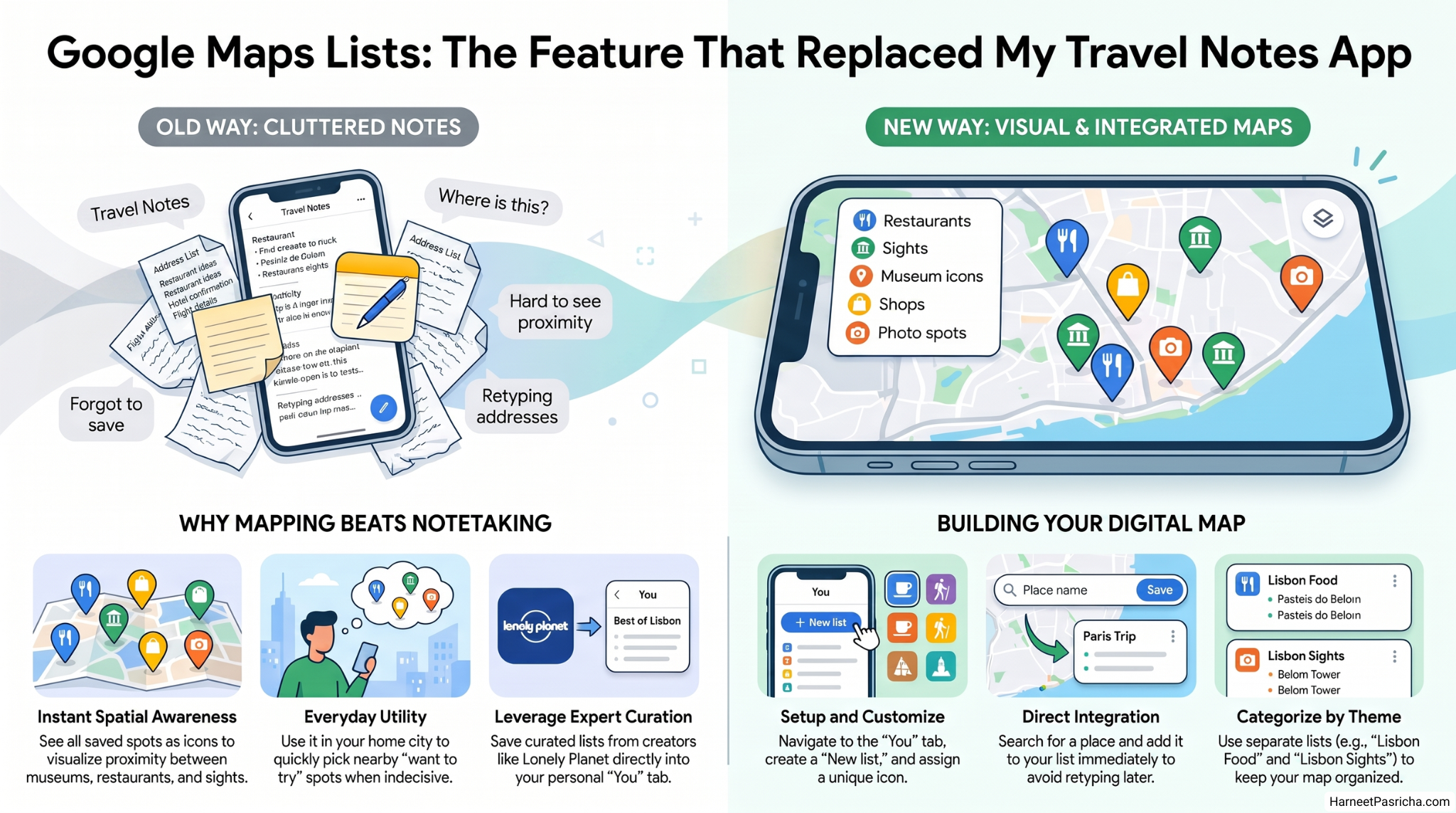
The problem with saving places in a note is that a note has no idea where anything is. A list inside Maps does. Open your list and every saved spot appears on the map with its own icon. You can instantly see that the bakery you saved is two streets from the museum, so you visit both in one go.
It also works at home, not just on trips. I keep a “want to try” list for my own city. Whenever I am out and feeling indecisive, I open it and pick whatever is closest. If you like keeping your digital life tidy, this pairs nicely with the system I shared in Mastering Google Keep: From Chaos to Clarity. Keep handles ideas, Maps handles places.
How to create a list in Google Maps
Setting one up takes under a minute:
- Open Google Maps and tap the You tab at the bottom.
- Tap New list.
- Give it a clear name, like Tokyo 2026 or Weekend Food Spots.
- Pick an icon so you can spot it quickly later.
- Tap Save.
- Tap Add places, search for a spot, and add it.
Keep adding places as you find them. Saw a restaurant on Instagram? Search it in Maps and drop it straight into the list while you remember.
One thing worth knowing: on iPhone you can add tags inside a list to sort places into groups like Food or Sights. That option has not reached Android or the web yet. My workaround is separate lists per category, such as Lisbon Food and Lisbon Sights. Slightly clunky, but it works.
Save lists other people already made
You do not have to build everything yourself. Search for a city in Maps and scroll down the city panel. Many cities show curated lists like Trending, Top List, and Local Gems, plus lists from creators like Lonely Planet. Tap Save on any of them and they land in your You tab under Lists you saved.
Google outlines more ways to customize the app on its own Maps tips page, and lists are honestly the tip I lean on most.
These days my trip planning starts and ends in one app. The note full of half-remembered restaurant names is finally retired, and I do not miss it at all.
Yes. Lists are built into the free Google Maps app on Android, iPhone, and the web. You just need to be signed in to your Google account.
Yes. Open the list, tap the share icon, and send the link. The other person can view the list and save it to their own account.
They do. Lists are tied to your Google account, so anything you save on your phone shows up when you open Maps in a browser and vice versa.
The tag feature inside lists is currently limited to iPhone. On Android, the simplest workaround is making separate lists for each category, like Paris Food and Paris Sights.
Your list still opens offline, but the map itself needs data unless you have downloaded an offline map for that area first. Downloading the offline map before a trip is a smart move.