
I used to think Preview was just the thing that opened when I double clicked a screenshot. Then I started digging into it, and now it handles jobs I once assumed needed paid software. These Mac Preview app tips cover the features I actually use every week, from signing documents to stripping image backgrounds.
Combine and rearrange PDF pages
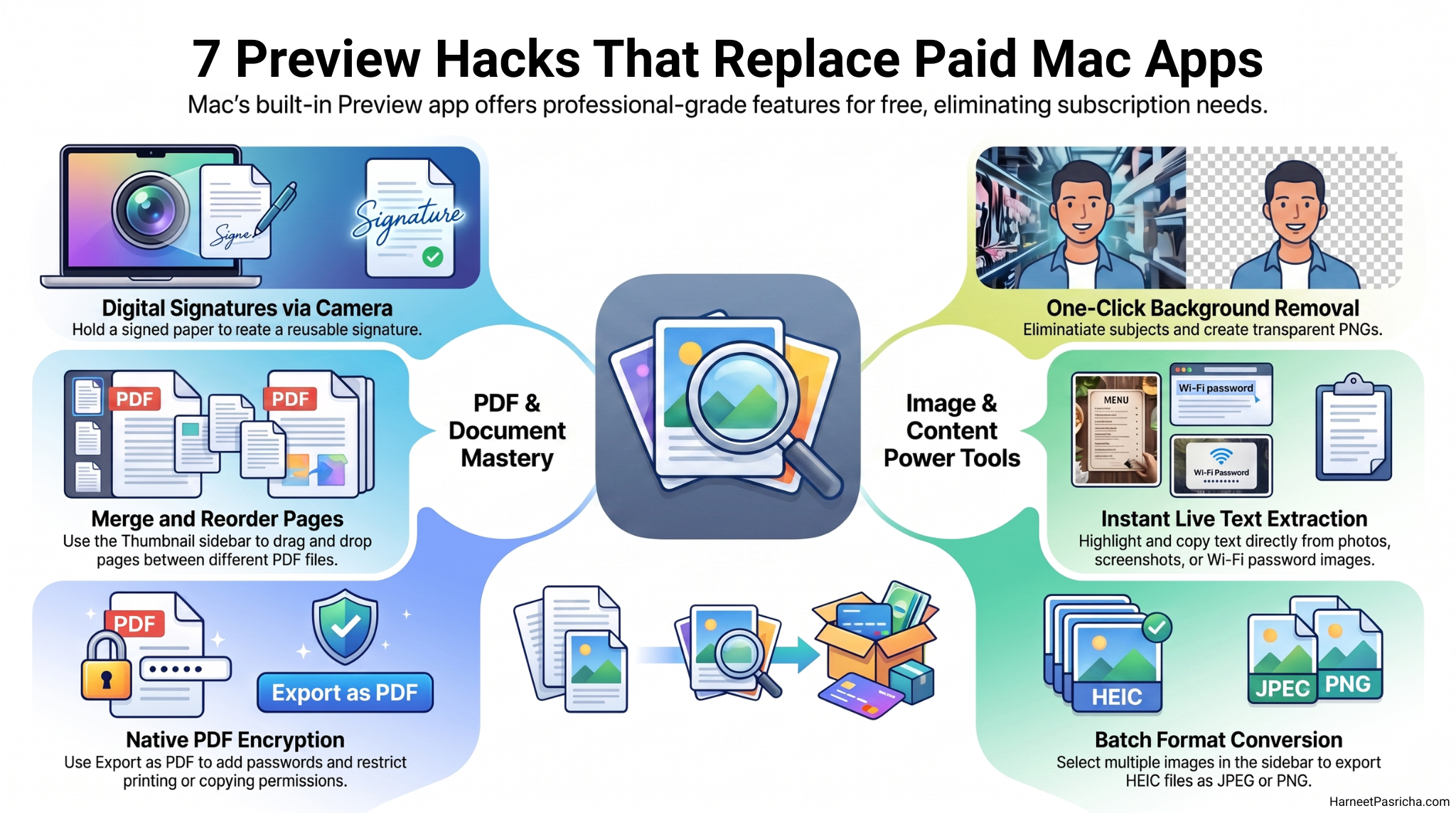
This one alone replaces a PDF subscription for most people.
- Open your PDF in Preview.
- Go to View > Thumbnails to show the sidebar (or press Option + Command + 2).
- Drag pages up or down to reorder them.
- To merge PDFs, drag pages from another PDF straight into the sidebar.
- Save, and you are done.
You can also drag a page out to delete it, or select a page and export just that one.
Sign documents without printing anything
Click the Markup button (the pen in a circle), then the signature icon, and choose Create Signature. You can sign with your trackpad, but my favorite trick is the camera option. Sign a white piece of paper, hold it up to your Mac’s camera, and Preview captures your real signature. It saves it for every future document too.
Remove an image background in one click
Open an image, then go to Tools > Remove Background (or press Command + Shift + K). Preview cuts out the subject and drops the background. It works best on photos with a clear subject, and you will want to save the result as a PNG to keep the transparency. It is not Photoshop, but for quick jobs it is shockingly good.
Convert images between formats
Got a HEIC photo that a website refuses to accept? Open it in Preview, go to File > Export, and pick JPEG, PNG, TIFF, or PDF from the Format menu. You can even batch convert by opening several images at once and selecting them all in the sidebar.
Copy text straight out of images
Hover your cursor over any text inside a photo or screenshot. When the cursor turns into a text selector, just highlight and copy. I use this constantly for grabbing Wi-Fi passwords from photos and phone numbers from screenshots. If you like moving fast like this, my roundup of 20 helpful Mac keyboard shortcuts pairs nicely with it.
Password protect a PDF
Sending something sensitive? Open the PDF, go to File > Export as PDF, click Show Details, and turn on encryption with a password. You can also set permissions that block printing or copying. No extra software needed.
Give PDFs a dark mode
If your Mac runs in dark mode, open a PDF and choose View > Use Dark Appearance for PDF. The blinding white page flips to a dark background that is far easier on your eyes at night. Note that the option only appears when your Mac is already set to dark mode.
Preview quietly does the work of half a dozen standalone apps, and Apple keeps adding to it. If you want the full feature list, Apple’s official Preview User Guide covers everything in detail. For me, these seven have earned Preview a permanent spot in my Dock.
Yes. Preview comes built into macOS on every Mac, so there is nothing to download or pay for.