
Most of us type a document one line at a time and reach for the toolbar every few minutes. The Google Docs @ menu cuts a lot of that out. Type one symbol and you can add people, files, templates, and more.
What the Google Docs @ menu can add
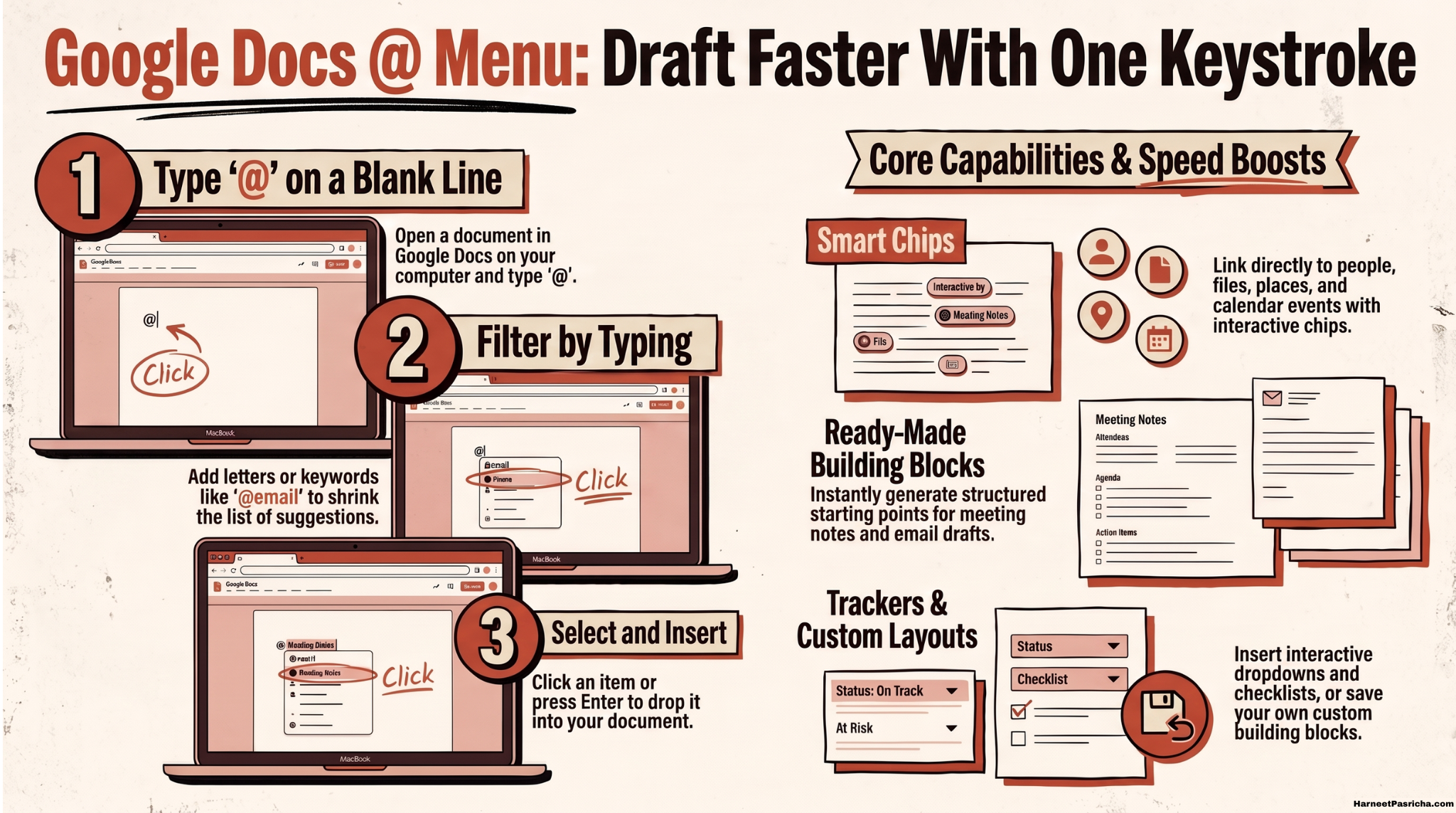
- Smart chips. These link to people, places, files, and events and show useful info or suggested actions right in the doc.
- Building blocks. These are ready-made starting points, like email drafts and meeting notes.
- Everyday elements. Dropdowns, checklists, bulleted and numbered lists, images, tables, charts, headings, and hyperlinks are all in there too.
How to use the @ menu
- Open a document in Google Docs on your computer.
- Type @ on a blank line.
- Pick an item from the list of suggestions.
Google’s official help page covers the full list if you want to see everything it can insert.
Narrow it down by typing
- Keep typing after the @. Add letters, numbers, or symbols to shrink the list of suggestions.
- Try @email. Type it and press Enter to drop an email draft template into your doc.
- Skip the scrolling. Once you know the word for what you want, the menu becomes a quick shortcut.
Ways the @ menu speeds up drafting
- Meeting notes. Start from a building block so the structure is already there.
- Email drafts. Write the rough version inside Docs, then polish it before you send it.
- Linked files and people. Mention a teammate or link a file with a chip instead of pasting a raw URL.
- Checklists and dropdowns. Turn a plain draft into something you can track and update.
Make your own building blocks
- Save your favorite layout. Custom building blocks let you reuse a format you build often.
- Know the limit. Custom building blocks are not shareable. Only the person who created one can reuse it.
- Share the template instead. Other people can copy your template and make their own custom building block.
If you also use Gemini in Docs, you can set custom instructions so you stop repeating yourself. And if you keep project files in Drive, Google Drive Projects pairs nicely with the links you add through the @ menu.
Next time you start a blank doc, try the @ key before you open any other menu.
It is a menu that opens when you type @ in a Google Doc. It lets you insert smart chips, building blocks, and elements like tables, checklists, and images.
Open a document on your computer, type @, and choose from the list of suggestions.
Yes. Keep typing after the @ to narrow the list. For example, type @email and press Enter to insert an email draft.
Building blocks are ready-made starting points, such as email drafts and meeting notes, that you can add from the @ menu.
No. Only the person who created a custom building block can reuse it. Other people can copy your template and make their own custom building block.
A smart chip links to people, places, files, or events and shows info about them. A building block is a reusable chunk of structure, like a meeting notes layout.