
Two Ecosystems, One Problem
Apple and Google do not exactly make it easy to work together. If you use a Mac and an Android phone like I do, you already know the little friction points that add up over time. AirDrop does not work. iCloud is not on Android.
Google Drive turned out to be the best bridge I have found between the two. Here is how I actually use it.
Google Drive for Desktop Makes Your Mac Feel Connected
This is the one that changed everything for me.
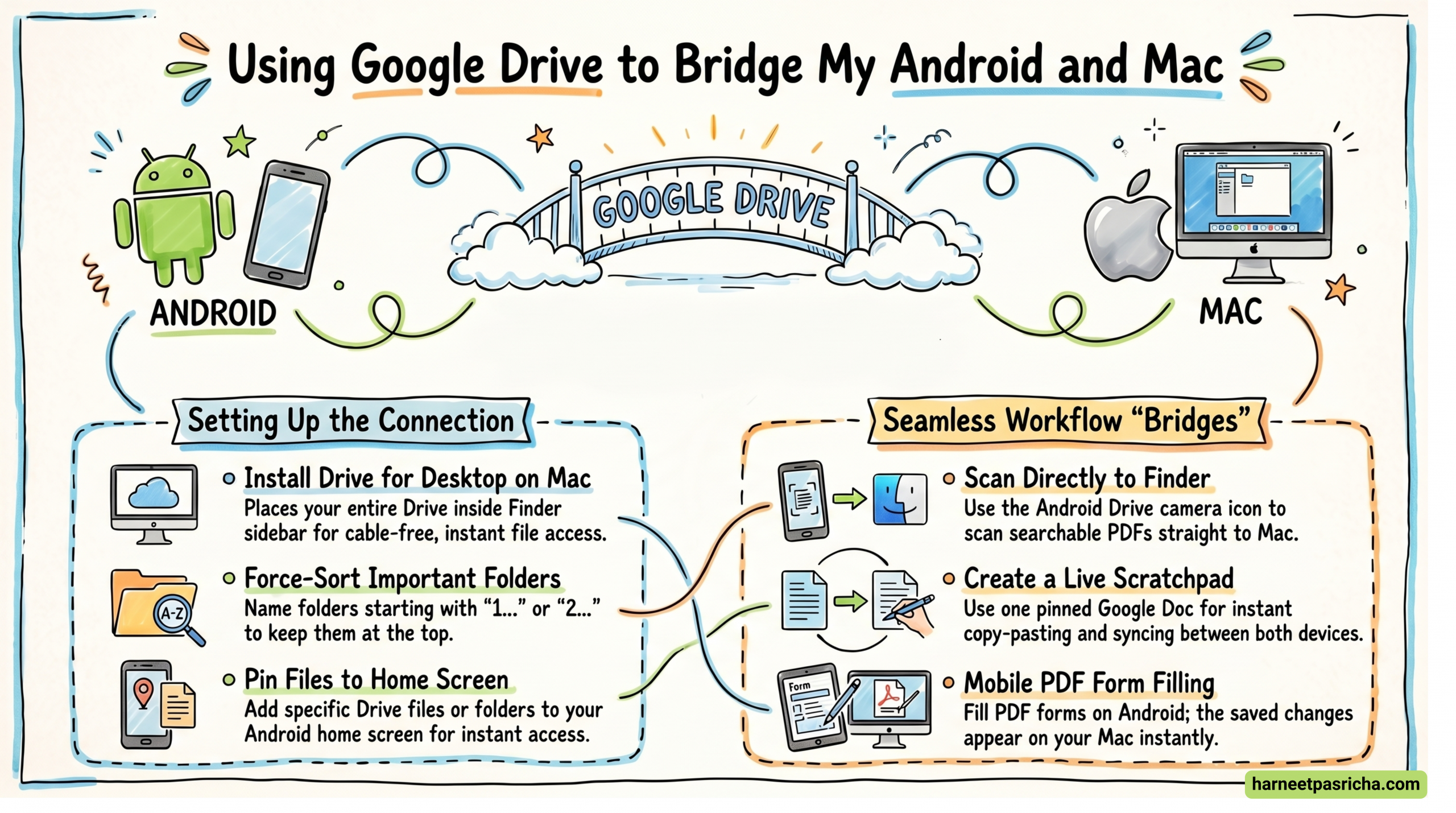
Google Drive for Desktop puts your entire Drive inside Finder, just like any other folder on your Mac. No browser tab, no logging in. Your files are just there, sitting alongside everything else on your computer.
The practical benefit is huge. When I take a photo on my Android phone, it is in Drive within seconds. On my Mac, I open Finder and it is already there. No cable, no AirDrop workaround, no email to myself.
You can download Google Drive for Desktop straight from Google’s website. Once it is installed, look for it in your Finder sidebar under Locations.
Scan Documents on Your Phone, Use Them on Your Mac
The Google Drive app on Android has a built-in document scanner that most people walk right past.
Tap the camera icon on the Drive home screen and you can scan any document straight from your phone. Drive crops it, cleans up the image, and saves it as a searchable PDF. Because it goes straight into Drive, it shows up in your Mac’s Finder folder automatically.
I use this for receipts, forms, and anything I need to sign or fill out. The old workflow was painful: photo, email, download, convert, upload. Now it is just scan and done.
A Shared Scratchpad That Lives on Both Devices
One of the most underrated things you can do is create a single Google Doc and use it as a live note that stays open on both devices at the same time.
On your Mac, keep it pinned as a browser tab. On your Android phone, add it to your home screen by tapping and holding the file in Drive, then choosing Add to Home screen from the three-dot menu.
Now you have a running note you can type into from either device and it updates instantly. I use mine for links I want to look at later, copy-paste snippets, and anything I need to move between devices quickly. It sounds simple because it is, and it works better than most dedicated apps I have tried.
Organize Once, Access Everywhere
One thing that helps a lot is spending ten minutes setting up your Drive folders properly. Name your most important folders starting with “1…” or “2…” so they sort to the top automatically, since Drive lists folders alphabetically. Color code them if that helps you.
Then add shortcuts for your most-used folders to your Android home screen. On your Mac, bookmark them in the Finder sidebar or keep them in your browser favorites.
The goal is to make Drive feel native on both devices, not like a website you visit occasionally.
Fill Out PDFs on Android, Save to Mac Instantly
If you ever need to fill out a PDF form, you do not need a separate app. Open the PDF in the Google Drive app on Android, and you will see a form-filling option appear. Type into the fields, tick the boxes, and save it. It goes straight back into Drive, which means it is on your Mac before you even put your phone down.
This one is Android only for now, but since your Mac sees everything in Drive through Finder, the end result is the same.
It Is Not Perfect, But It Is the Best Option Out There
Google Drive does not completely erase the Android and Mac gap. Some things still feel clunky compared to a full Apple or full Google setup. But as a middle layer that both devices genuinely trust, it is hard to beat. Once it is set up properly, moving files between your phone and laptop stops being a chore.
FAQ
Yes, and the Mac experience is actually quite good. The desktop app integrates with Finder cleanly, and right-clicking files gives you quick options like copying share links or making files available offline.
No. The free 15 GB tier is enough to get started. If you store a lot of photos or large files, a paid Google One plan gives you more space, but the features covered here all work on the free plan.
You can mark specific Drive files or folders for offline access. They sync to your Mac and stay available without a connection. Any changes you make will upload automatically once you are back online.
Yes. If you ever switch or use both, Drive works on iOS as well. The Android app has a couple of extra features like the built-in scanner and native PDF editing, but the core experience carries over.
Upload the file to Drive on your Android phone. On your Mac, it appears in Finder through the desktop app. You can also right-click it in Finder to copy a shareable link if you need to send it to someone else.