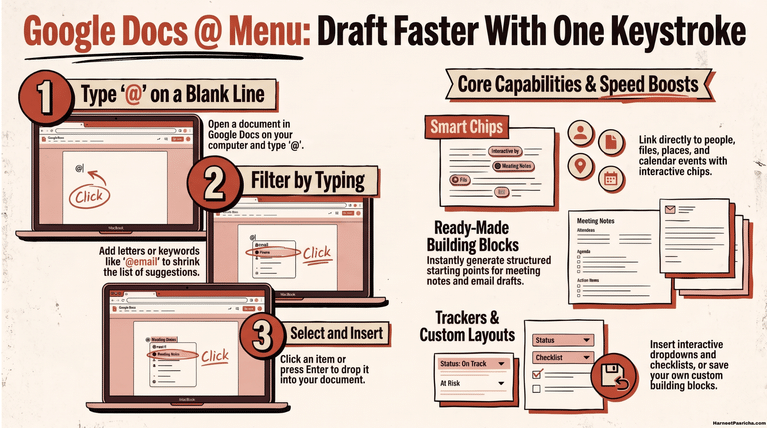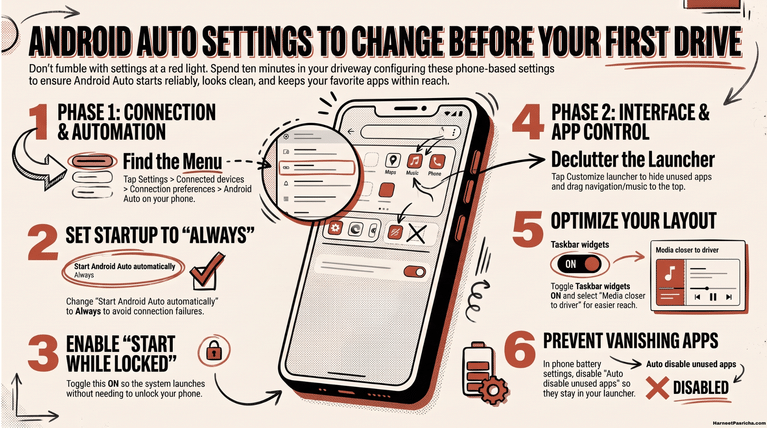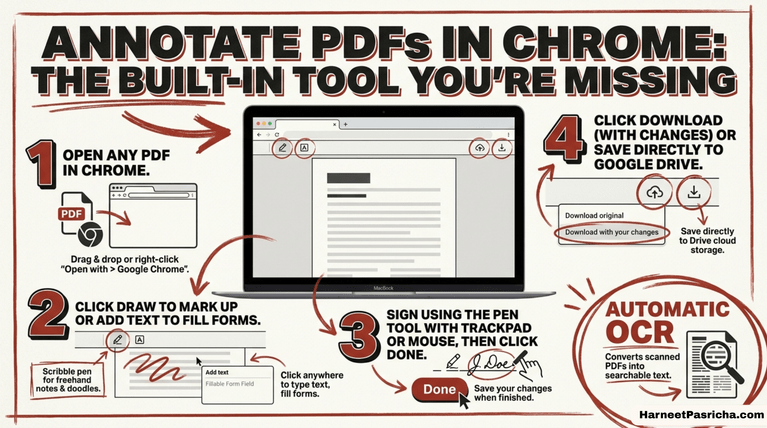

Most people treat Google Drive like a digital filing cabinet. You drop files in, you pull them out later, and that’s about it. But these Google Drive tricks turn it into something far more useful than basic storage. Here are seven worth trying if you have only ever used Drive to save files.
Google Drive trick #1: Scan documents with your phone
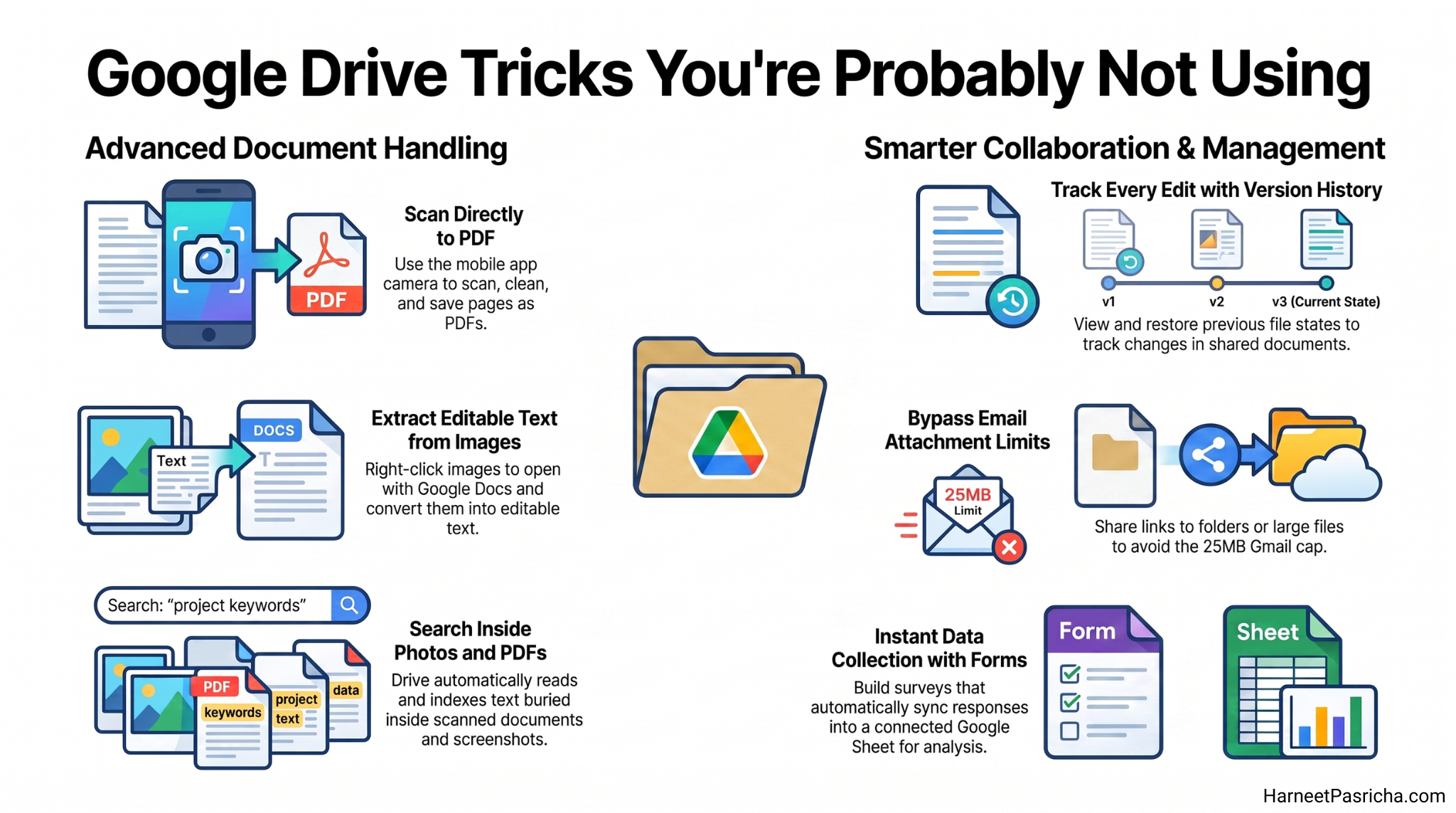
Skip the scanner. Open the Google Drive app on Android or iPhone, tap the camera icon (or the plus icon on iOS), and choose the scan option. Drive will straighten the page, clean up the lighting, and let you add more pages before saving everything as one PDF. It works best when your original photo is clear and well lit, so a little care up front goes a long way.
Search inside images and PDFs
You already know Google Docs are searchable. What’s less obvious is that Drive can also read text inside photos and PDFs, even ones you never typed a word into. Just search like normal, and matching text buried in a scanned document or a screenshot will show up in the results. You can also filter your search to only show images or only show PDFs if your results get cluttered.
Turn a photo into editable text
If you have a PDF or photo full of text you want to edit, right click it in Drive on your computer, choose Open With, and select Google Docs. Drive will pull the text out and drop it into a new document, doing its best to keep the formatting intact. This works best with files under 2MB, common fonts, and text that is right side up. It is not available on mobile yet.
Check your full version history
Anyone who has worked on a shared document knows how easy it is to lose track of who changed what. Drive keeps a running history of every edit. Open a Google Doc, go to the File menu, and select Version History to see exactly what changed and when. You can restore an old version or branch off a new copy without touching the current one.
Another handy Google Drive trick: share large files without email limits
Gmail caps attachments at 25MB, which fills up fast with photos and video. Drive sidesteps that entirely. Upload any file, generate a shareable link, and decide whether it goes to specific people or anyone with the link. For multiple files, either zip them first or just share the whole folder.
Collaborate without the chaos
Forget emailing a document back and forth and merging everyone’s edits by hand. In Drive, everyone works on the same live file. You can assign people as viewers, commenters, or editors, and suggestion mode lets collaborators propose changes without altering the original until you approve them.
Build forms and surveys
Tucked into the New menu in Drive is Google Forms, an easy way to build quizzes and surveys. Every form comes with a connected Google Sheet that fills in automatically as responses come through, so you can review the data right away or export it elsewhere if you need deeper analysis. If you want to dig deeper into organizing your files once they pile up, check out our guide on setting up Google Drive Projects.
Once you start trying out these Google Drive tricks, the app starts to feel less like a storage box and more like a small toolkit you already had access to the whole time.
Yes. The scan feature is built into the Google Drive app on both Android and iOS, so you do not need a separate scanning app.
It works best on printed or typed text. Handwriting recognition is less reliable and may not show up in search results.
Yes, the document should be under 2MB for Google’s OCR tool to read it accurately.
Yes, as long as it’s a Google Doc, Sheet, or Slide, you can use Version History to restore an earlier version of the file.
Yes, it’s included automatically. You’ll find it under the New menu in Drive at no extra cost.
Yes, your finger works fine on a touchscreen, and on other platforms you can still leave comments using the same method as commenting on a Google Doc.