
If you have ever wondered how to customize Google News, you are not alone. The app sat in my drawer for months before I figured out the right way to use it. Once I did, it became one of my most-used apps.
Here is what made the difference.
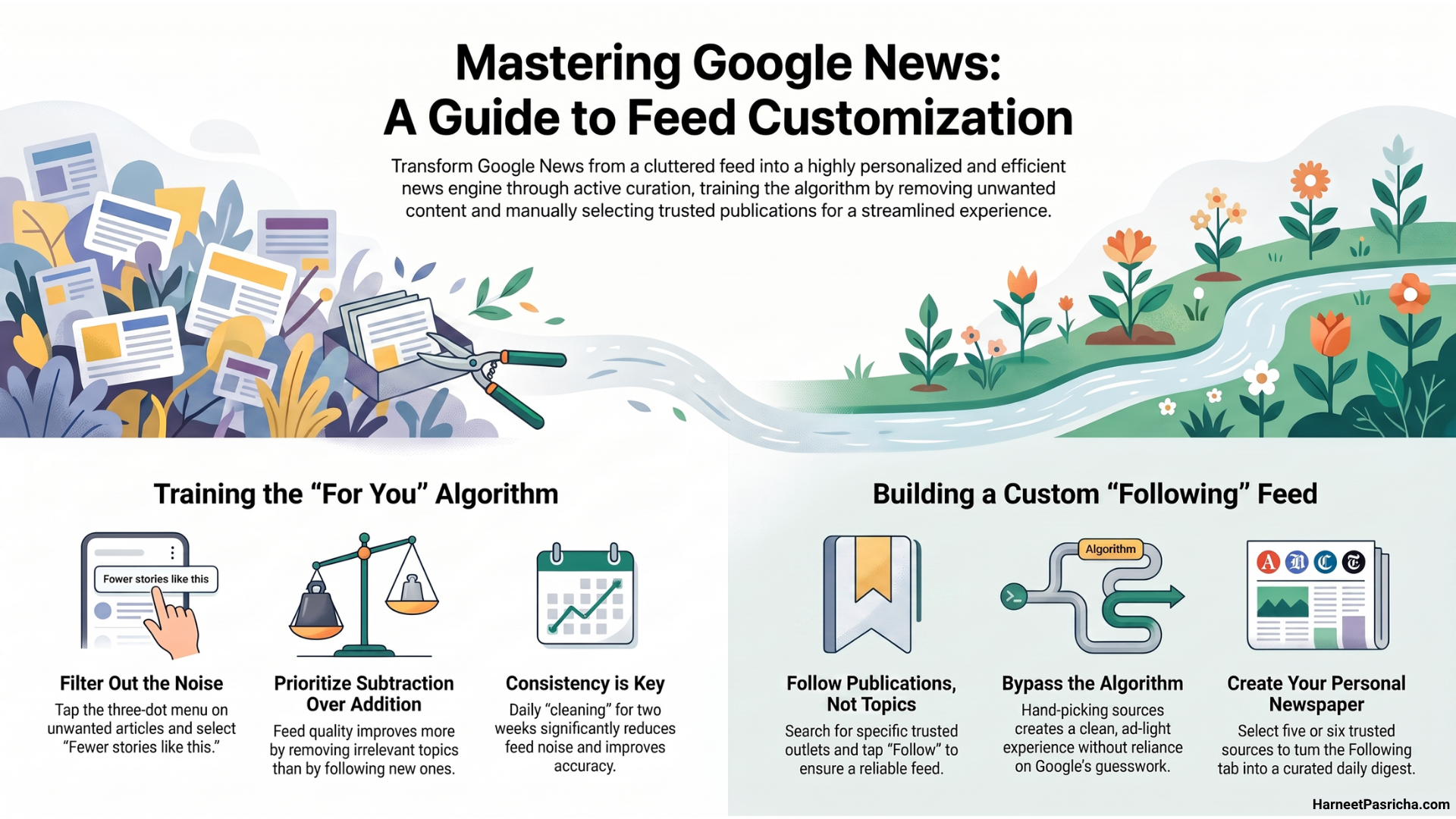
The For You Tab Is Useful, But Only If You Train It
When you open Google News, the first thing you see is the For You tab. Think of it like a news version of your Instagram feed. Google tries to guess what you want to read based on your interests and past activity.
The top of this tab shows Top Stories, which is basically breaking news in your region. I glance at it, but I do not spend much time there.
The section I care about is Picks for You, further down the page. This is where Google surfaces articles it thinks match your taste. When it works, it is great. When it does not, it is a mess.
Here is the trick that actually fixed it for me:
Tell Google What You Do NOT Want
Most people try to customize Google News by following more topics. I did the opposite.
- Open Google News and browse your For You feed
- Tap the three-dot menu on any article that does not interest you
- Select Fewer stories like this or Fewer stories about [topic]
- Repeat this every day for a couple of weeks
It sounds tedious, but it works. After a while, the noise drops off and the feed starts showing you things you actually want to read. I barely have to do it anymore.
The Following Tab Is Where I Spend Most of My Time
The Following tab is the hidden gem in Google News. This is your own hand-picked news feed, separate from Google’s algorithm.
You can follow specific topics or search terms here. But honestly? That feature never worked well for me. I tried following local tech events and kept getting months-old results that had nothing to do with current news.
What does work is following publications directly.
I added the outlets I actually trust. Now my Following tab is basically a clean, ad-light version of those sites all in one place. Every time I open the tab, I get fresh articles from sources I already like. No guesswork from Google needed.
How to Follow a Publication in Google News
- Tap the Search icon at the top of the app
- Type the name of a publication (like a tech site you like)
- Tap the publication name in the results
- Hit Follow
Do this for five or six sources you trust and the Following tab becomes your personal newspaper.
When Google News Is Not Enough
Knowing how to customize Google News only gets you so far. If you follow something specific, like Android updates or a particular niche, the app still falls short. The results are too broad and not always timely.
For that, I use Feedly alongside Google News. It is an RSS reader that lets you pull in exact feeds from specific sites, so you never miss a post. Together, they cover everything.
One More Thing: Ditch Google Discover
If you swipe right from your home screen on Android, you get Google Discover. It looks similar to Google News but is harder to customize. I turned it off and have not looked back.
Google News gives you way more control. Once it is set up right, it is a much better use of your time.
Yes, Google News is completely free. You can download it on Android or iPhone, or use it on the web at news.google.com. No subscription needed.
The For You tab is Google’s algorithm picking stories for you based on your interests. The Following tab only shows articles from sources and topics you have manually chosen to follow. The Following tab gives you more control.
Google News learns over time, but it needs your feedback. Use the three-dot menu on articles to tell it you want fewer stories like that. After doing this regularly for a week or two, the feed improves noticeably.
Yes. Search for any publication inside the app and tap Follow on their page. Their articles will then show up in your Following tab every time they publish something new.
Google Discover is the news feed you see when you swipe right from your Android home screen. It is easier to access but harder to customize. Google News gives you much more control over what you see, so it is the better option for most people.
It is decent but not perfect. For broad tech news it works fine. But for very specific topics, an RSS reader gives you more reliable and timely results. Using both together is a solid setup.